Battle royale
- Show
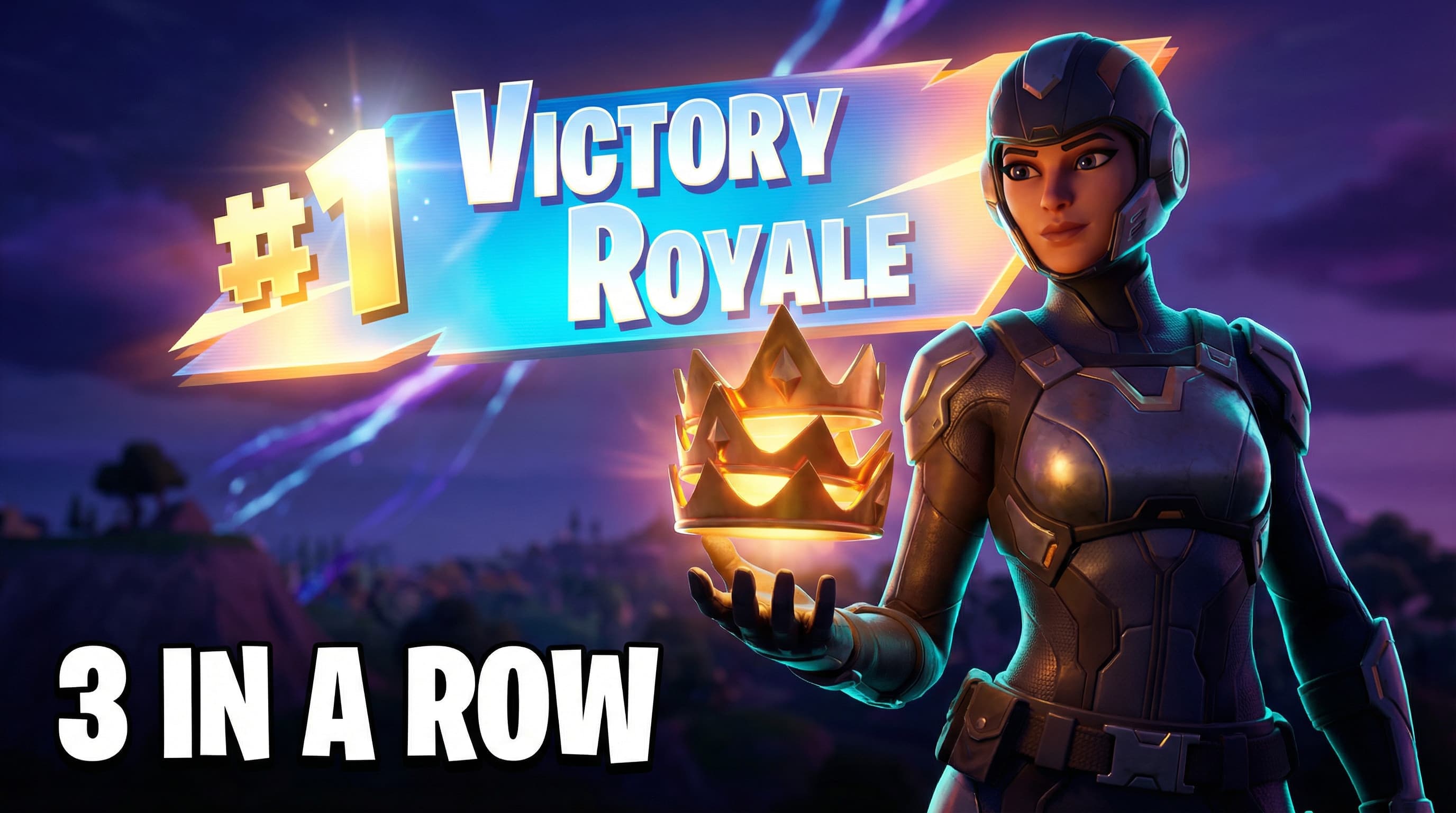
- Show the skin and weapon large enough to recognize.
- Try
- Use the second before the elimination: cover breaks, one player remains, or the storm closes in.
- Avoid
- A full lobby screenshot. Small players turn into background noise.
Gaming thumbnails
A gaming thumbnail is the 16:9 image people see before they watch a gaming video. Show the game and the challenge, then leave the result open. VisualKit helps you make and compare gaming thumbnails before you upload.
Gaming thumbnails shown in the same 16:9 shape YouTube uses.
Key parts
A good gaming thumbnail is easier to make when you choose these four parts first. Start with the game, then choose the moment, then simplify the space around it.
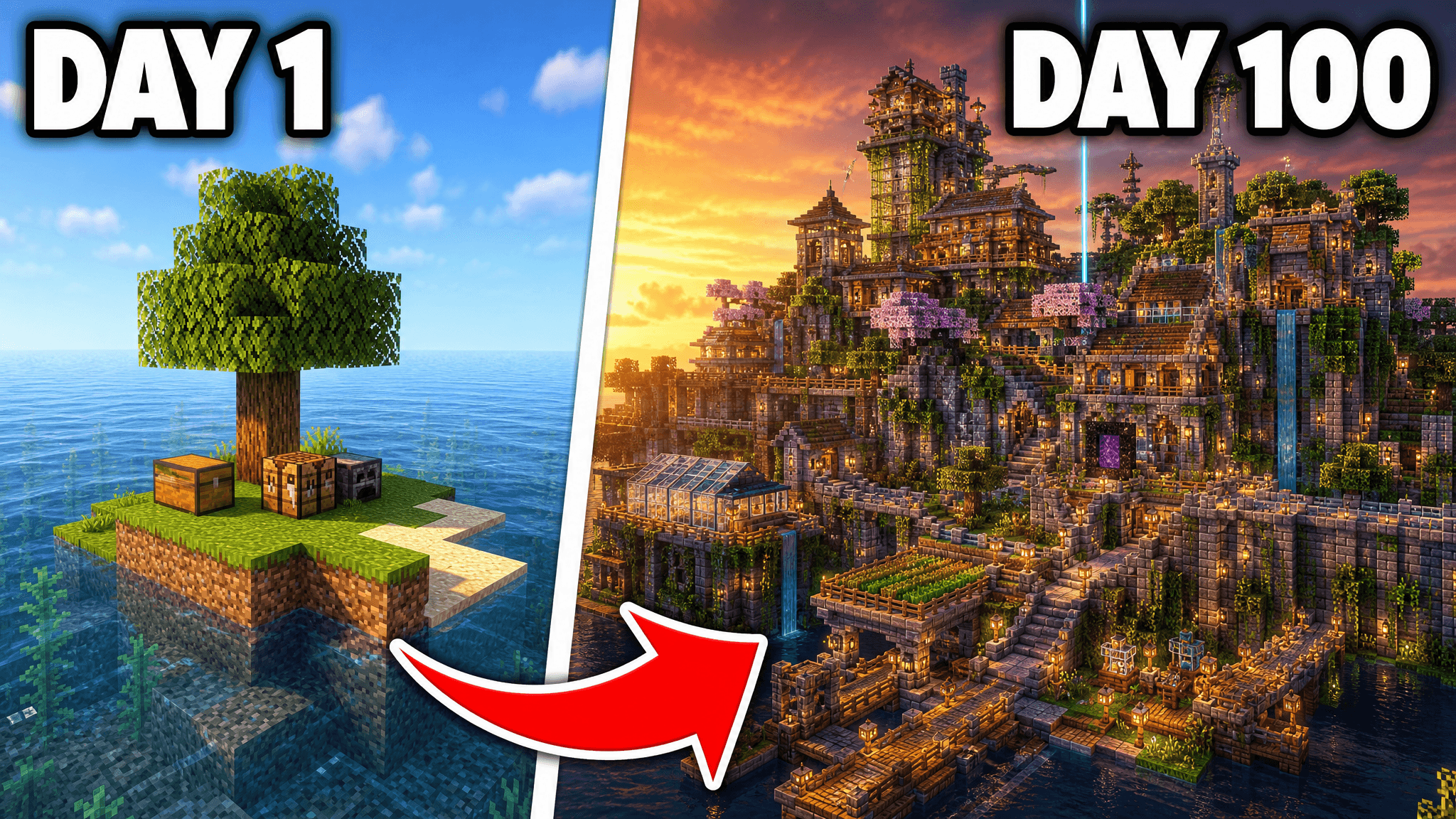
Example: the blocks show the game. The change from one tree to a large build shows the challenge. DAY 1 / DAY 100 is enough text. It shows the result, so it fits a build video where the finished build is the point.
Pick one detail that tells viewers which game they are seeing: blocks, a map, a character, a weapon, a car, or a familiar HUD shape. Viewers usually choose the game before they choose the video. If the game is not clear, the thumbnail has no home.
Show one thing that is wrong, rare, huge, or about to happen: a base on fire, a strange score, one hit left, or a build far bigger than expected. Keep it to one. Two problems split the viewer's attention.
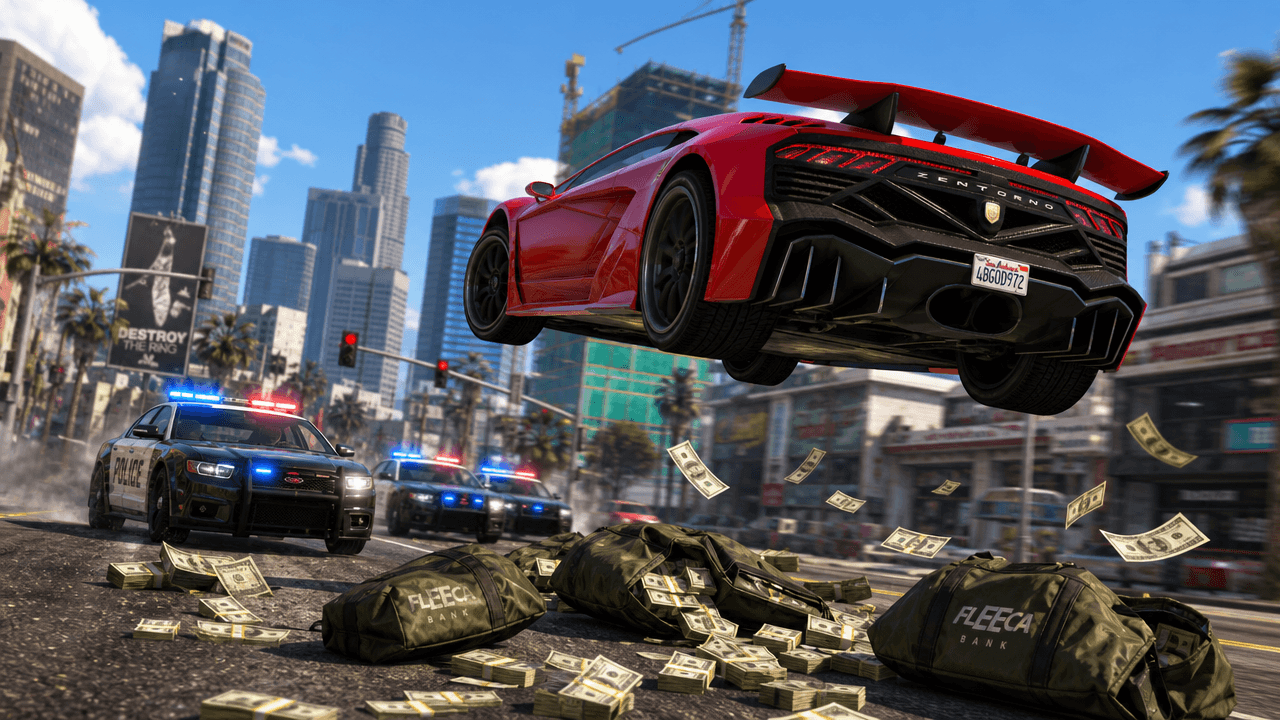
Stop one moment before the answer: the shot is still in the air, the base is half standing, or the pack is unopened. If the image shows the result, there is less reason to watch. Make sure the video shows the promised moment early.
Make the main subject bright, keep the background darker and simple, then check the image in black and white. If the subject blends into the background at small size, more color will not fix it.
Ideas by genre
Each game type has details viewers recognize fast. Use those details, then show one thing that makes the video worth watching.
Thumbnail text
Most gaming thumbnails need little or no text. Add words only when they tell viewers something the title and image do not. See the thumbnail text guide.
A simple process
Make five choices in this order. You can use Photoshop, a browser editor, or VisualKit.
Choose one detail that tells viewers the game: a texture, character, map, or vehicle. Write it down. If you cannot name it, the thumbnail may look like it belongs to any game.
Use the shot in the air, the half-built base, or the unopened pack. Make sure the video shows the moment or result early.
Make one subject large and bright. Keep the background dark and simple. Use about three meaningful elements. Add a bright edge only when the subject blends into the scene.
Use text only when it adds something new. Use a bold sans-serif font, usually in caps. Keep text away from the bottom-right corner and bottom edge.
Shrink it to about the width of a suggested-video card. Can you still see the game, main subject, and question in one second? Then switch to black and white. The subject should still be easy to see.
YouTube specs
Gaming thumbnails use the same YouTube rules as other video thumbnails. Use 16:9, export a large image, and check the upload limit for the device you use.
| Aspect ratio | 16:9 |
|---|---|
| Recommended resolution | 3840 × 2160 |
| Minimum width | 640 pixels |
| Common working canvas | 1280 × 720 |
| Mobile upload limit | 2 MB |
| Desktop upload limit | 50 MB |
| Common formats | JPG or PNG |
| Areas YouTube can cover | Bottom-right duration badge; bottom progress bar |
| Small-screen check | About 168 pixels wide |
See more sizes and covered areas in the thumbnail size and safe-zone guide, then check your draft at small size with the free thumbnail tester.
Common mistakes
These mistakes make the game hard to recognize or hide the video idea. Fix them before you add more effects.
Purple and cyan, extra particles, and glowing edges can make every game look the same. Start with the game's own colors.
Players know the scoreboards, health bars, and killfeeds in their games. Wrong details make the thumbnail feel fake.
Team logos and military props can suggest a team or story that is not in the video. Remove anything that does not help explain the video.
Gameplay screenshots are made for playing, not for a small thumbnail. Choose one subject and darken the background so it is easy to see.
A face, gameplay, text, and arrows can all fight for attention. Pick the main subject, then make everything else smaller.
If the thumbnail shows something the video does not deliver, viewers leave. It can also break YouTube's rules for misleading thumbnails.
Before you publish
Use this list on the finished image, not just in the editor. If one line fails, fix that first.
More game guides
The basic rules stay the same. Each game has details its players expect, so use the guide for the game you play.
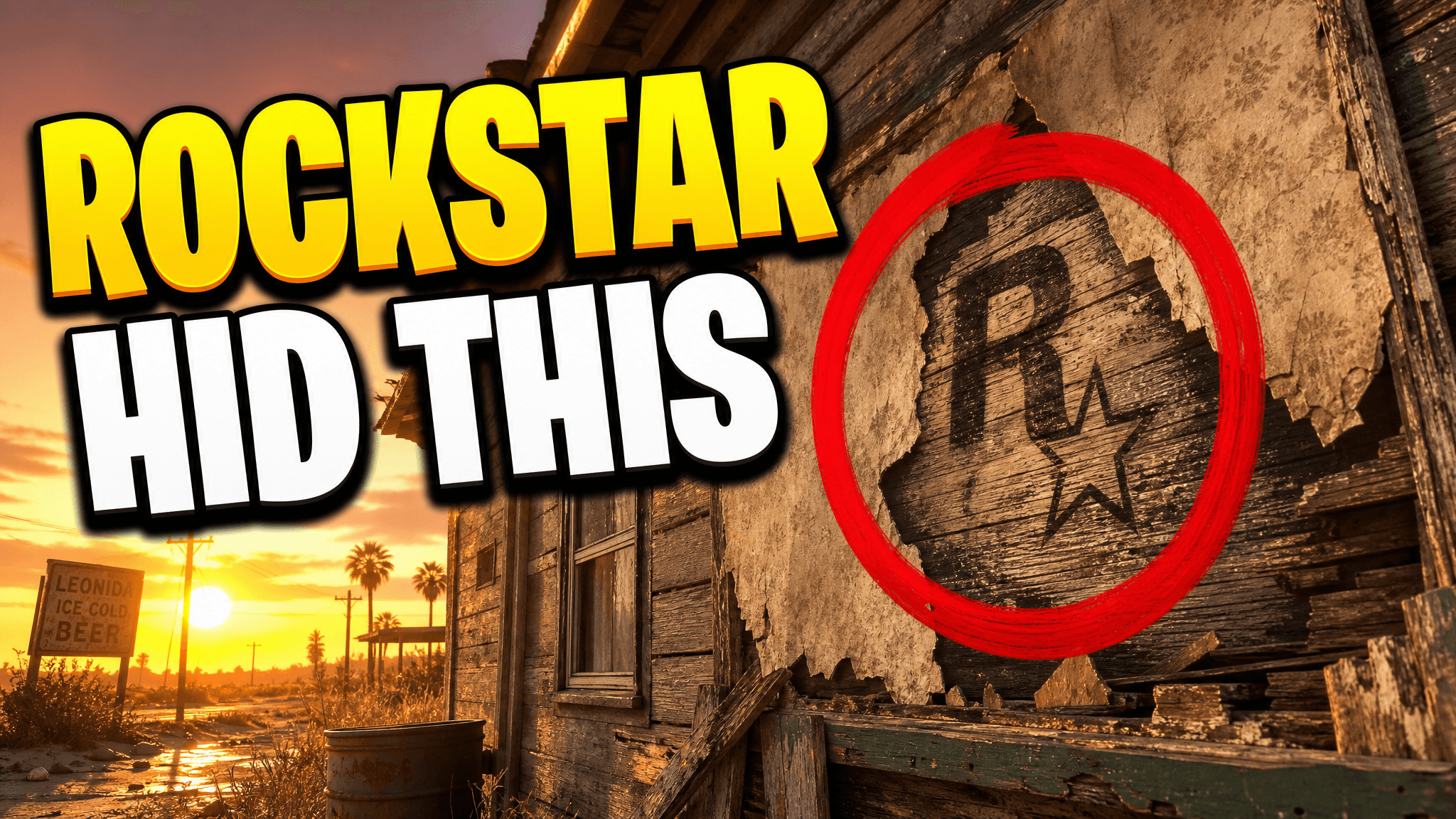
Fortnite thumbnail guide
Battle royale
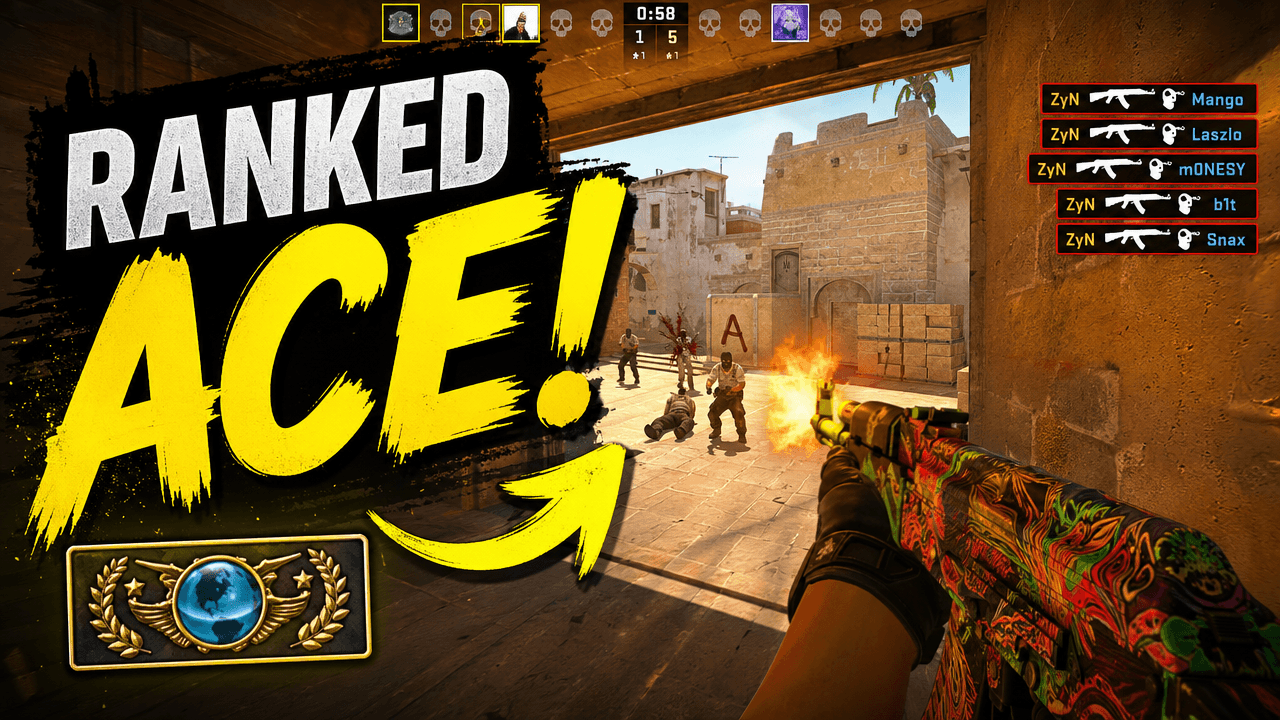
CS2 thumbnail guide
Tactical shooter
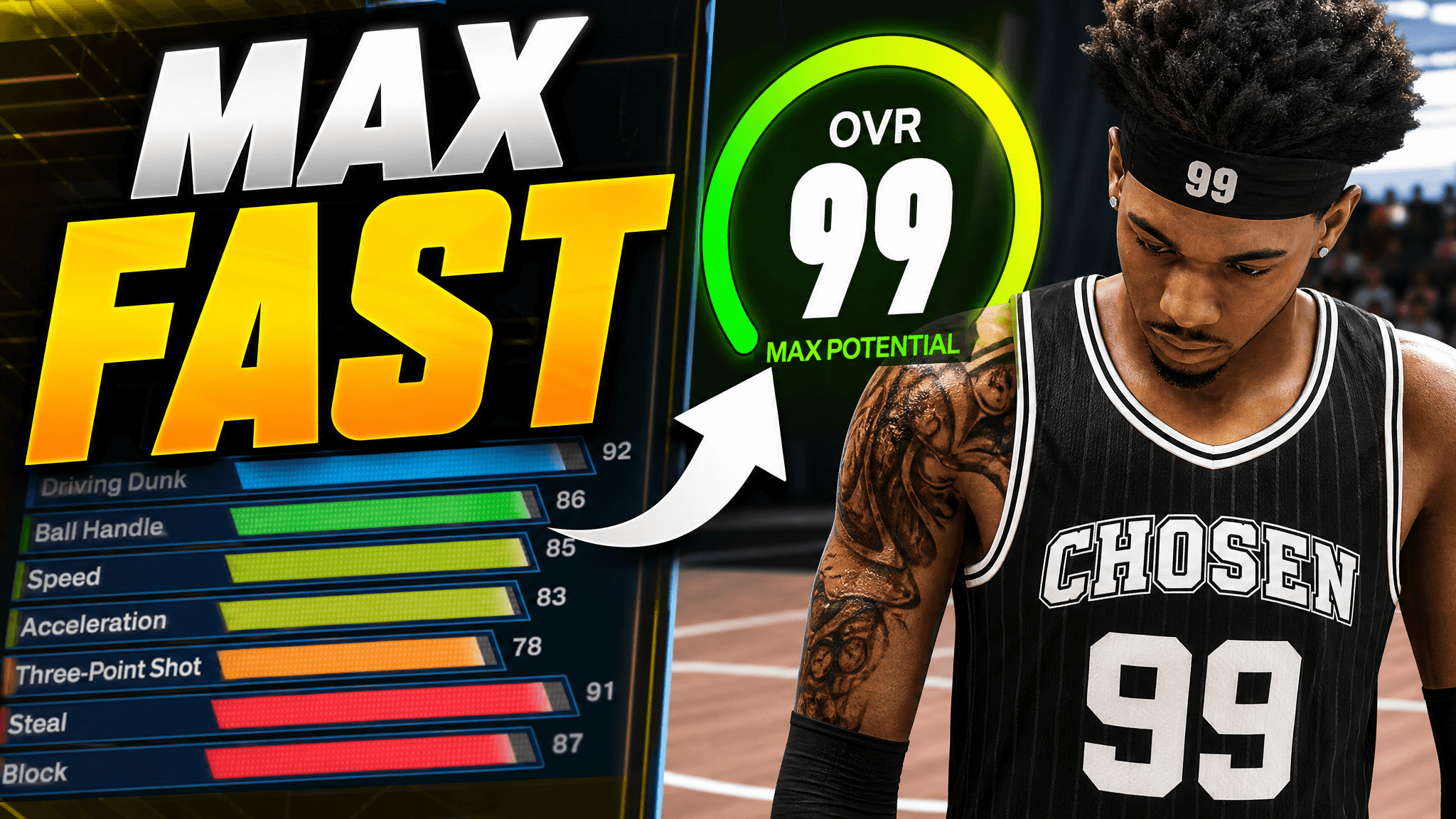
NBA 2K27 thumbnail guide
Sports
Warzone thumbnail guide
Battle royale
GTA 6 thumbnail guide
Open world

GTA 5 thumbnail guide
Open world
Valorant thumbnail guide
Tactical shooter
FC27 thumbnail guide
Sports
Brawl Stars thumbnail guide
Mobile action
Roblox thumbnail guide
Sandbox platform
Minecraft thumbnail guide
Survival and sandbox
ARC Raiders thumbnail guide
Extraction shooter
Clash of Clans thumbnail guide
Mobile strategy
Clash Royale thumbnail guide
Mobile strategy
More guides
Describe the game and video idea. Compare a few options, ask for changes, and export the one that still reads on a small screen.