Prompt to thumbnail
Say what happens live
The host, the guest, the game, or the announcement. You get a few to pick from.
Create thumbnails for upcoming streams, live interviews, gaming sessions, launches, recurring shows, and special events. Show who or what will be live. Then make the topic clear before the stream starts.
When you have the idea, use AI thumbnail maker to make a few options and pick the one that reads on a phone.
Tell VisualKit what happens live and pick the one you like.
The host, the guest, the game, or the announcement. You get a few to pick from.
Every thumbnail gets a score out of 100. One click fixes the weak part.
Your thumbnail
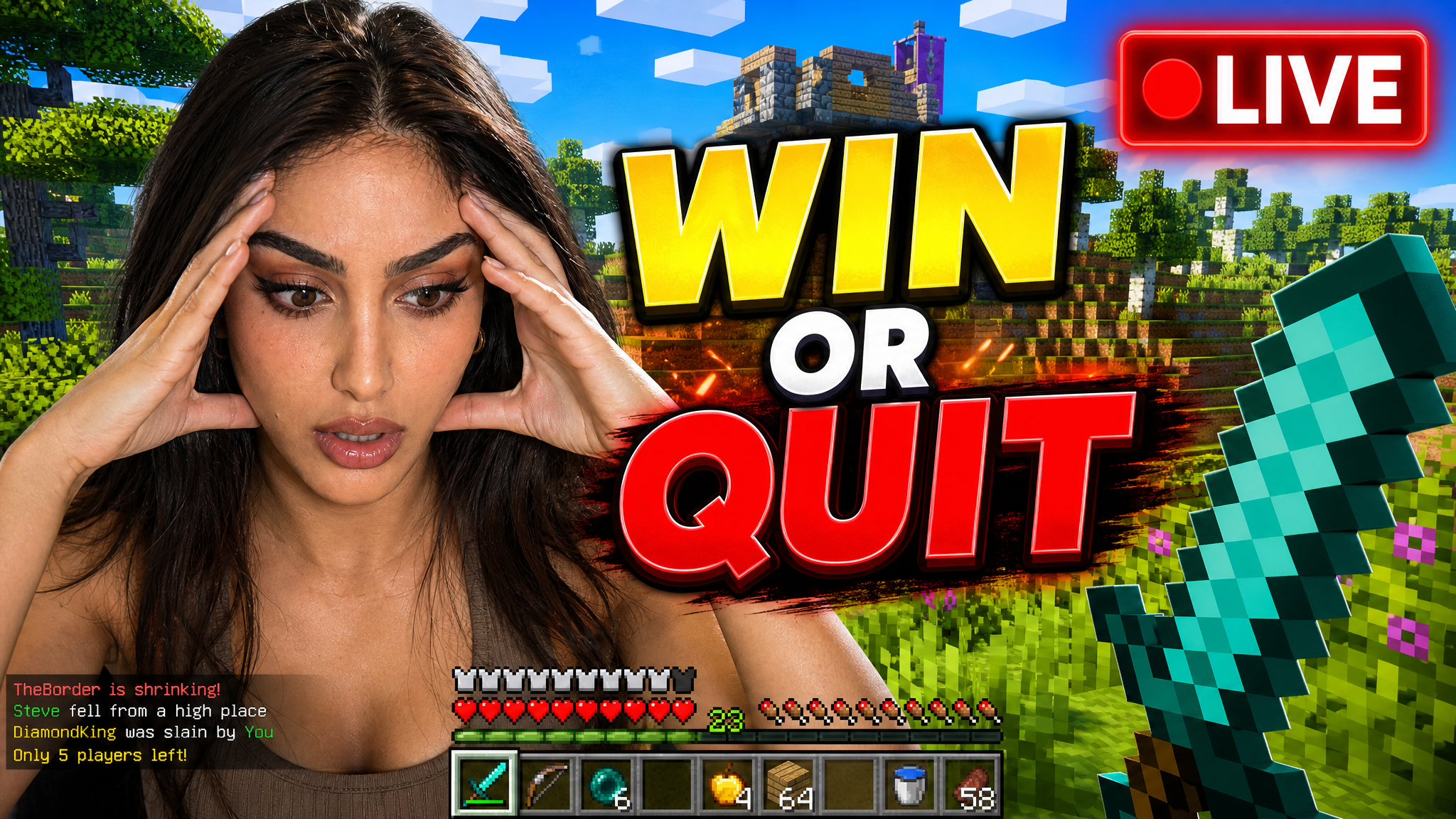
Checking click potential…
After one fix
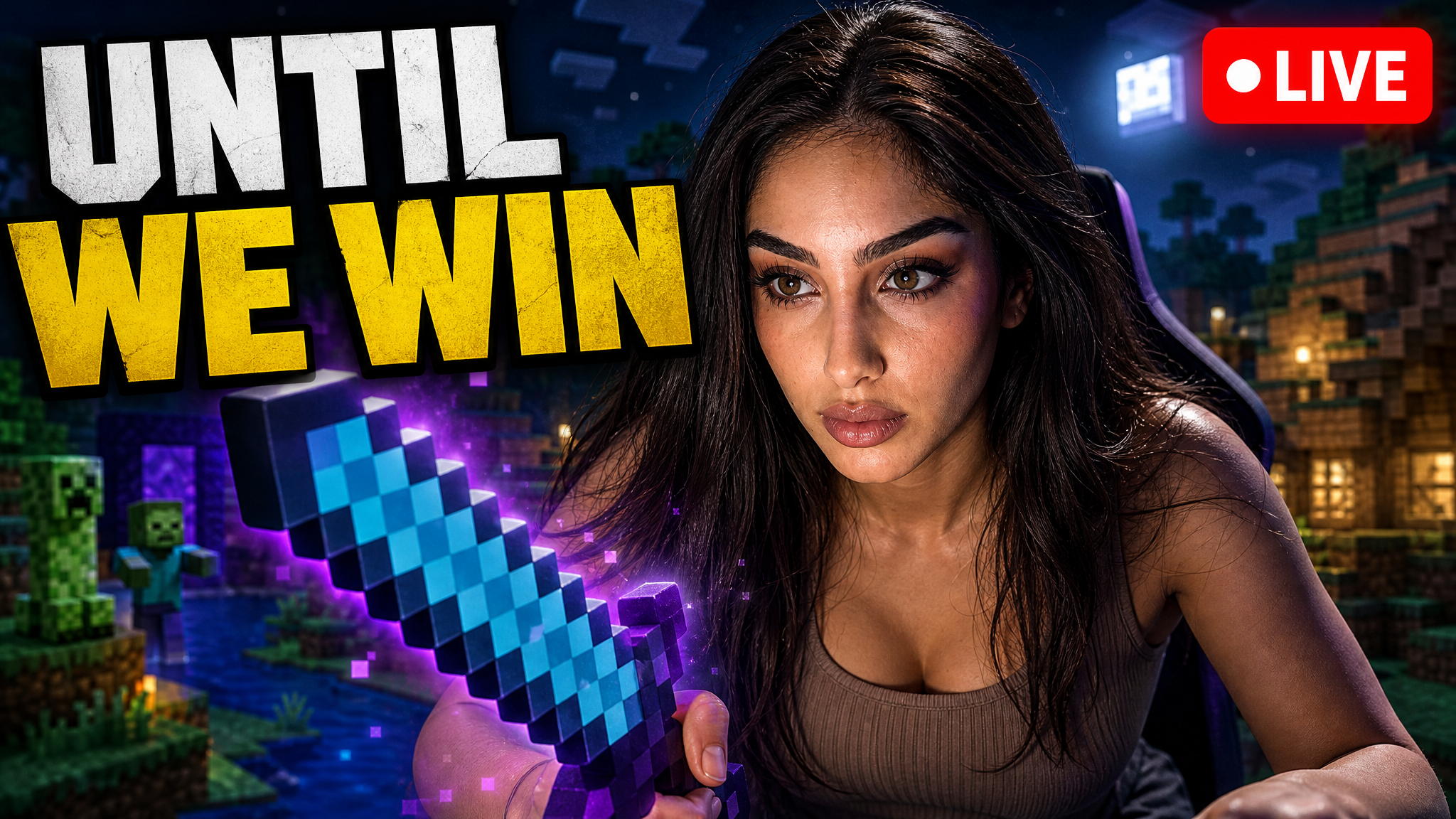
Your idea, with a sharper edge.
A better starting point for your next upload.
Ask for a bigger host or shorter text. Keep it honest about the event.
The edit, simplified
Your prompt
Make the guest and live topic easier to see
One instruction. A more deliberate thumbnail.
Download your thumbnail and add it to your YouTube video.
Browse livestream thumbnail ideas for guest interviews, timely discussions, gaming streams, launches, and recurring live shows.
Your thumbnail gets one chance to earn the click before the video starts.
If the thumbnail looks confusing, they click another video.
Each round of feedback can cost another day.
Other AI tools leave the same fake look. VisualKit is built to avoid it.
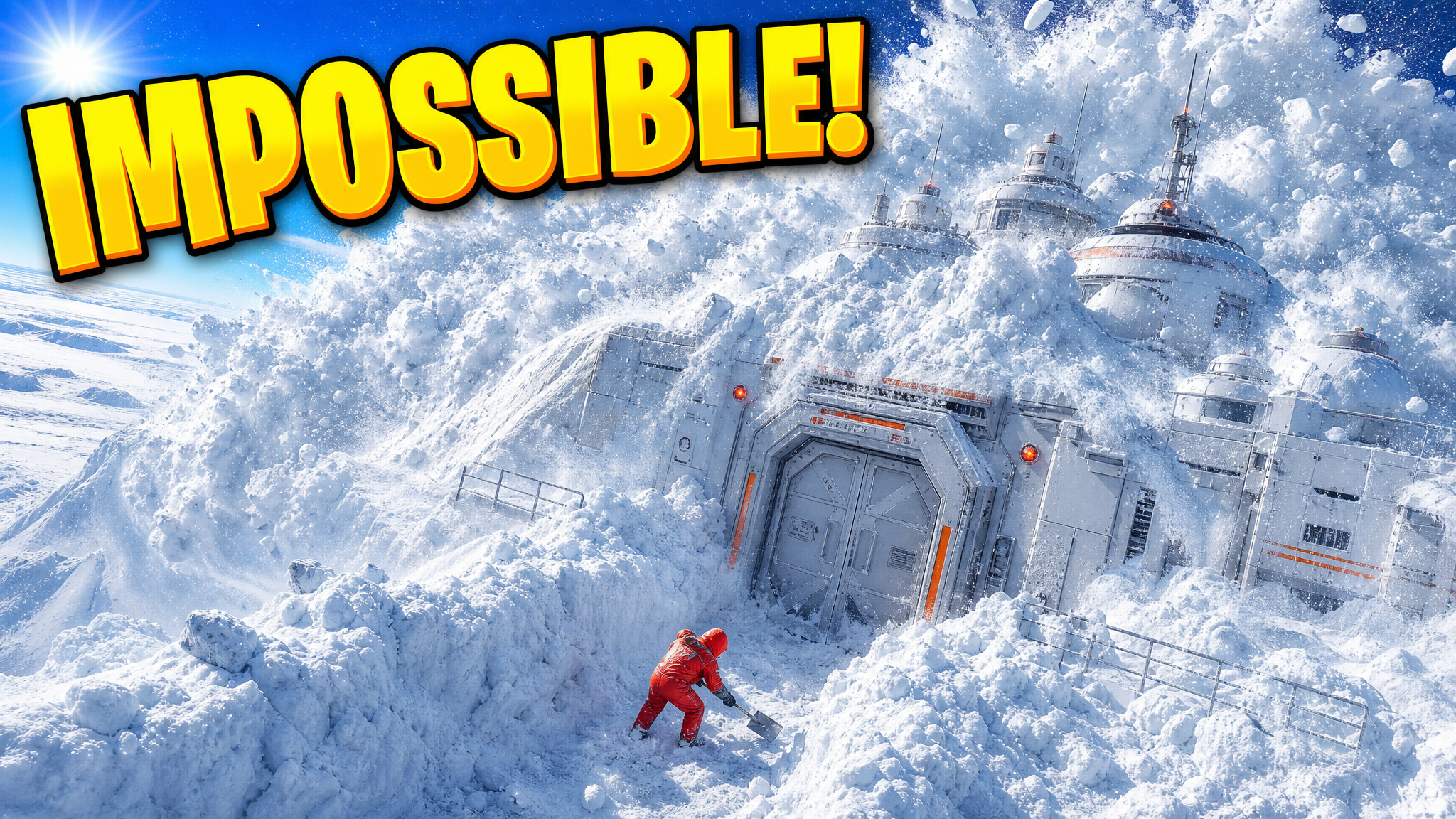
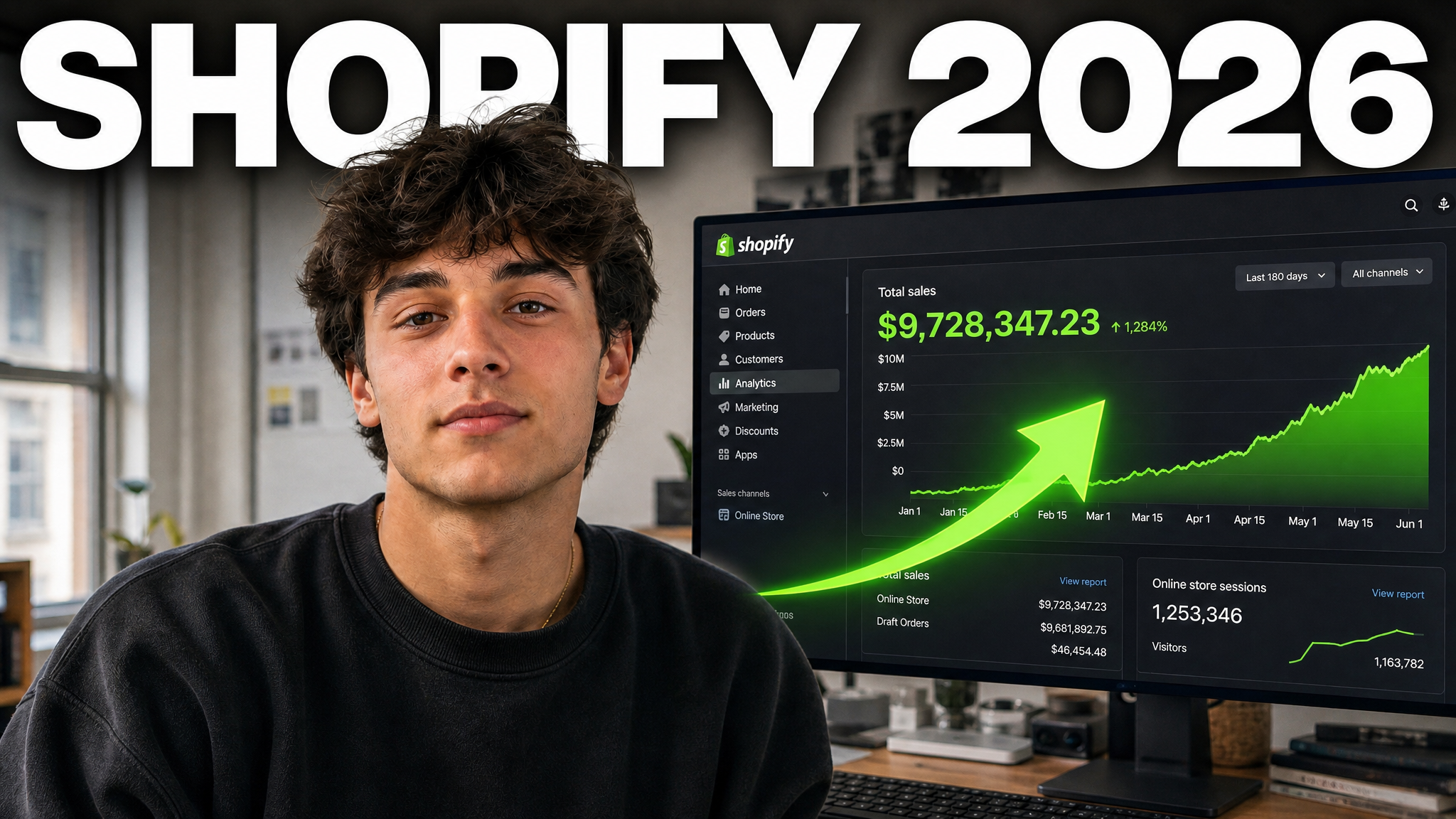
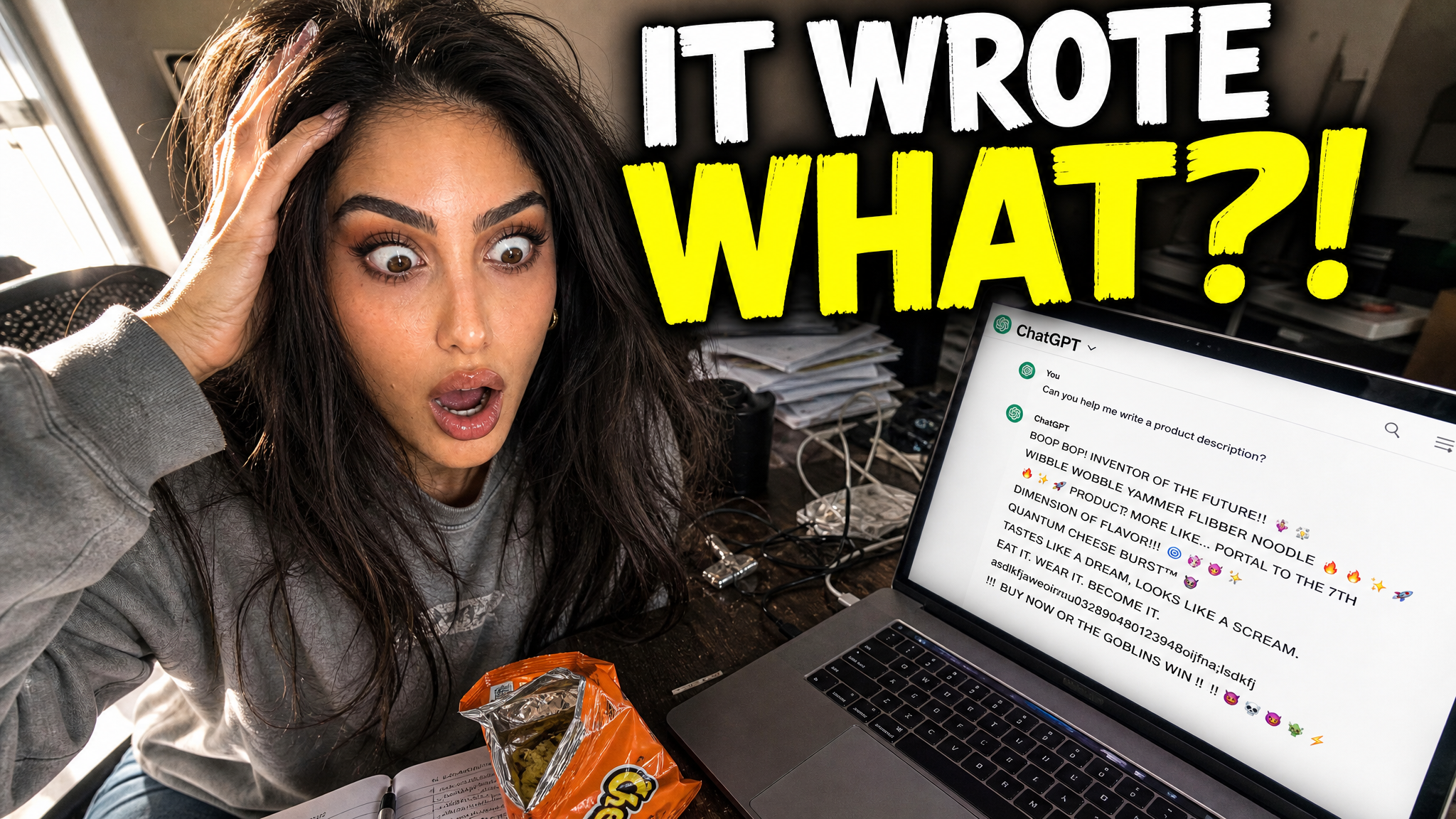
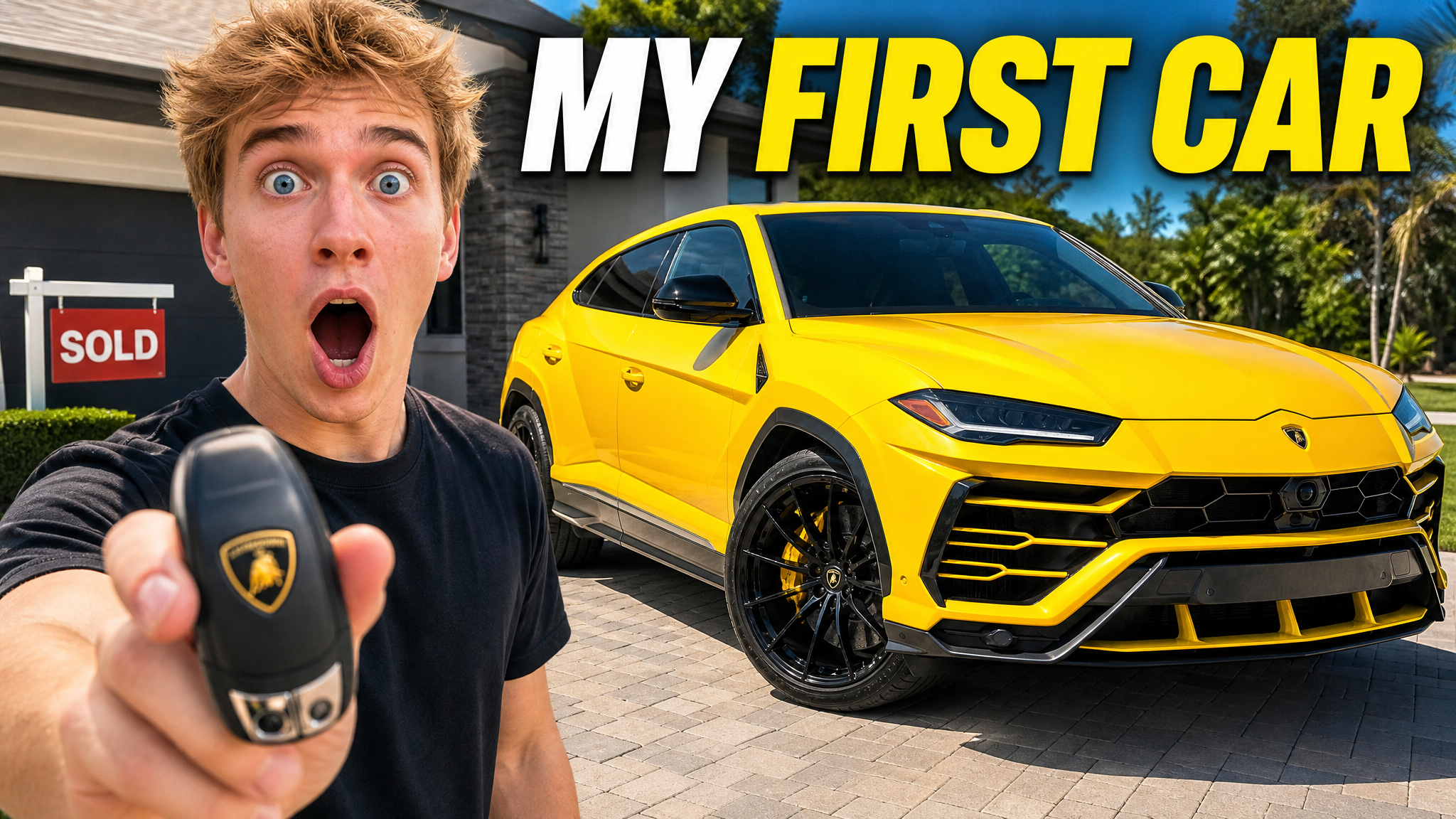
Real thumbnails created with VisualKit.
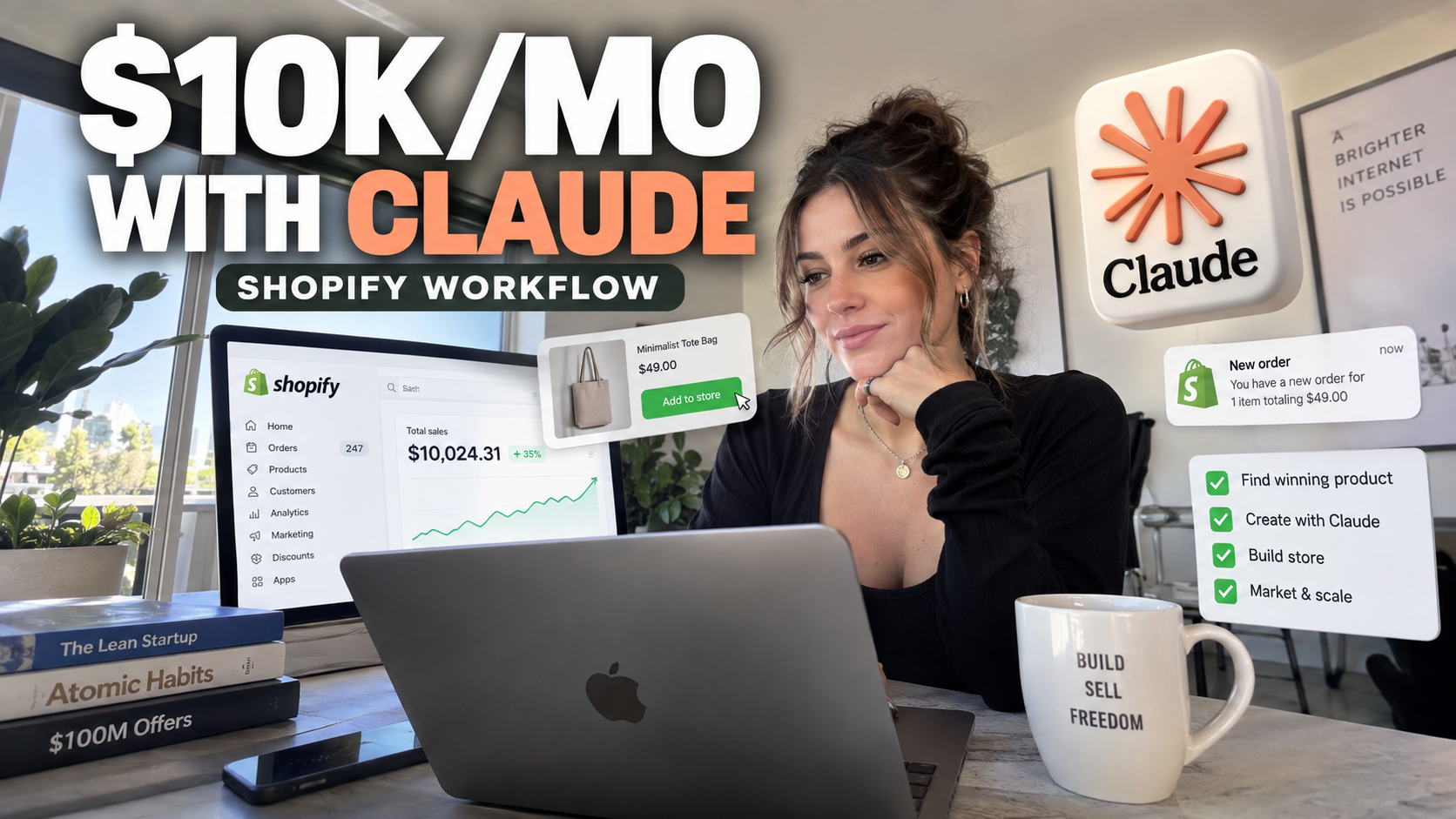
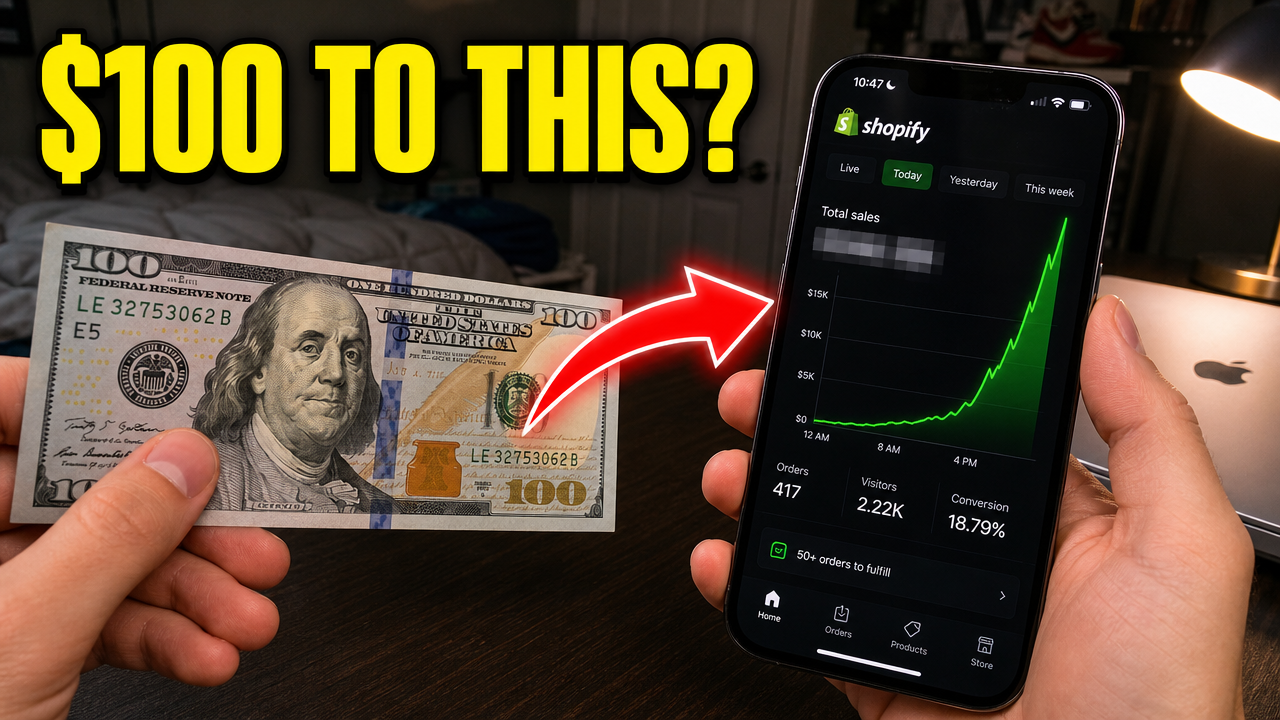
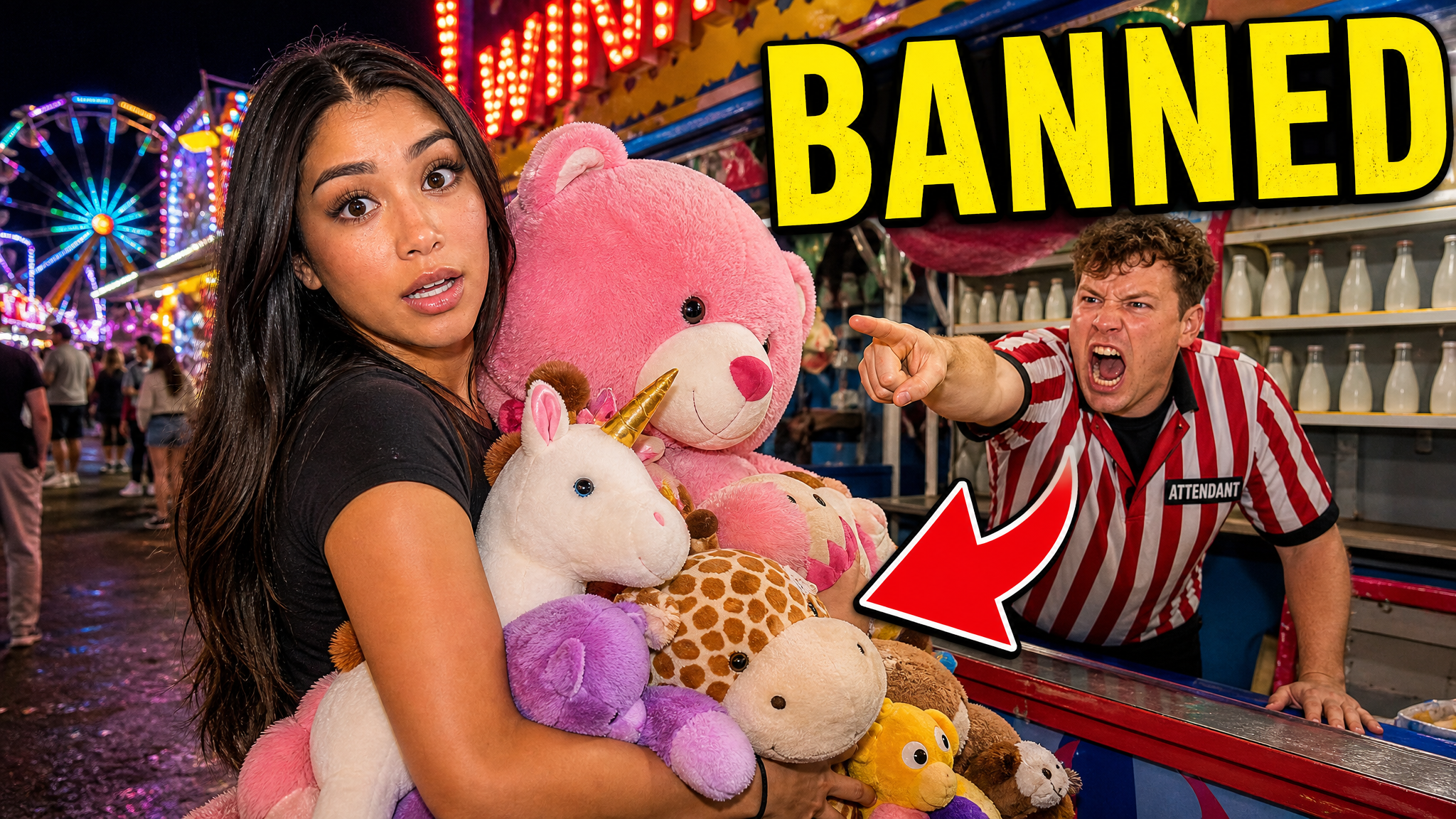
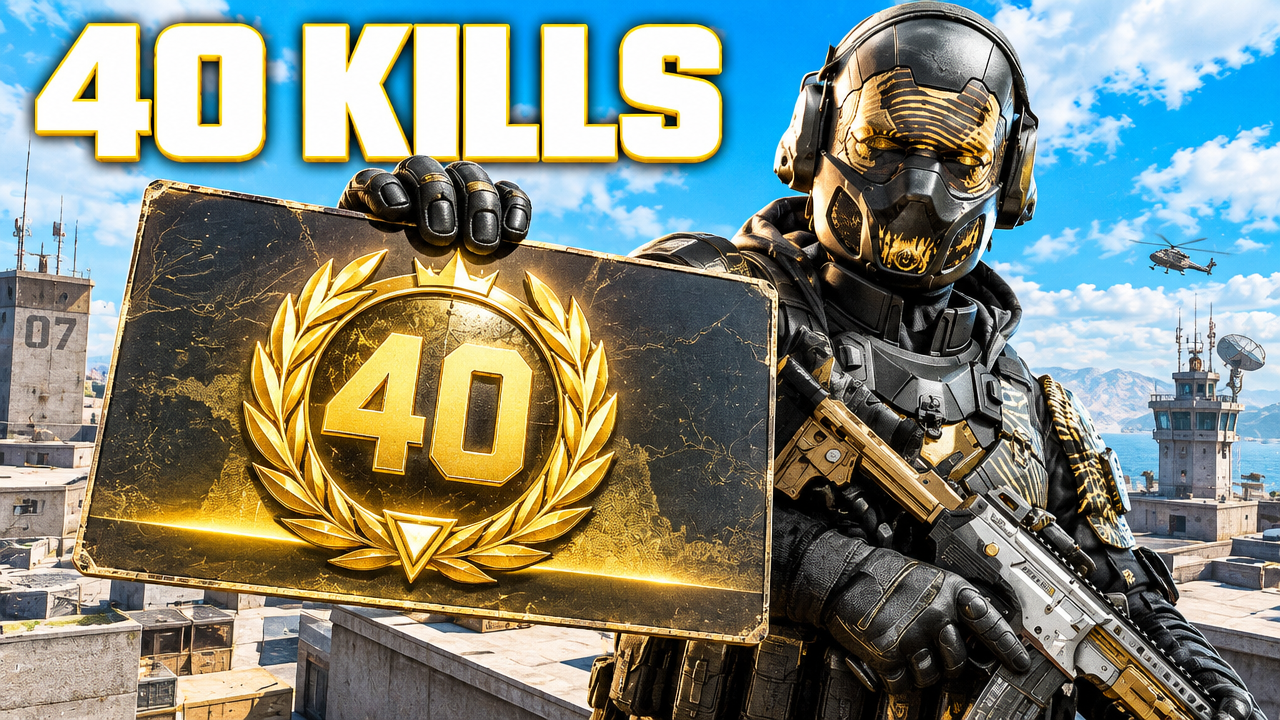
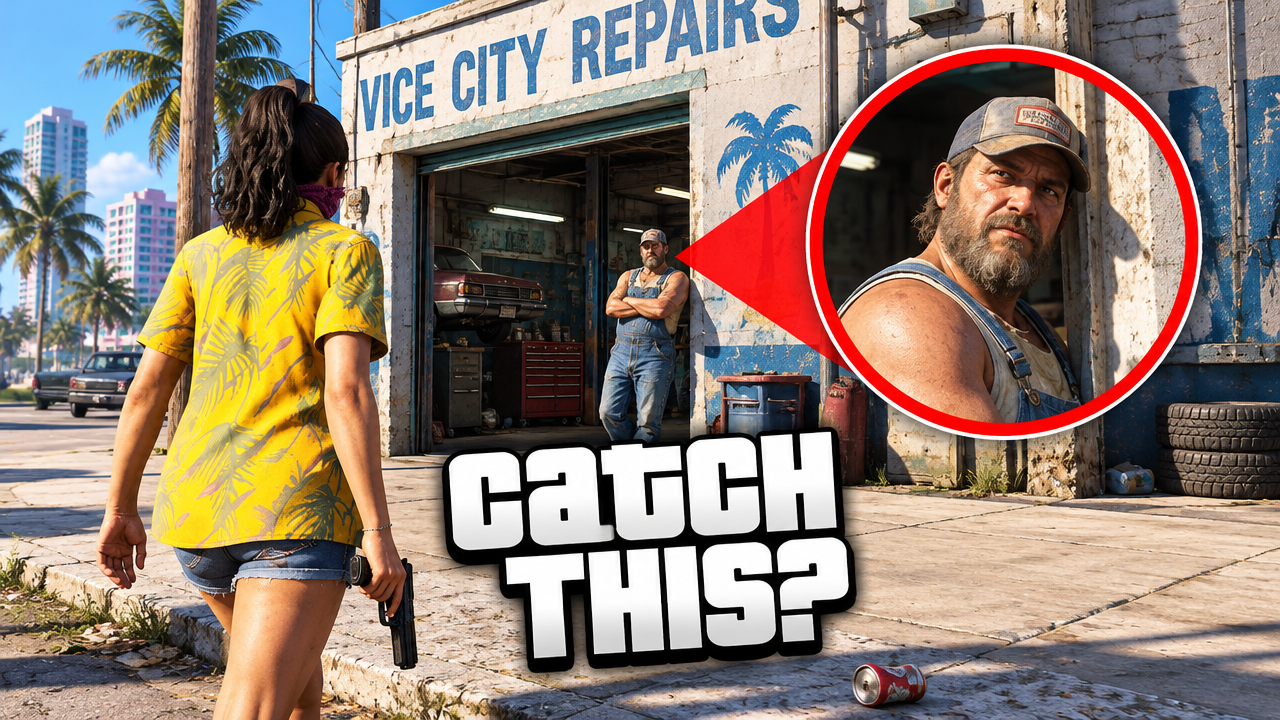
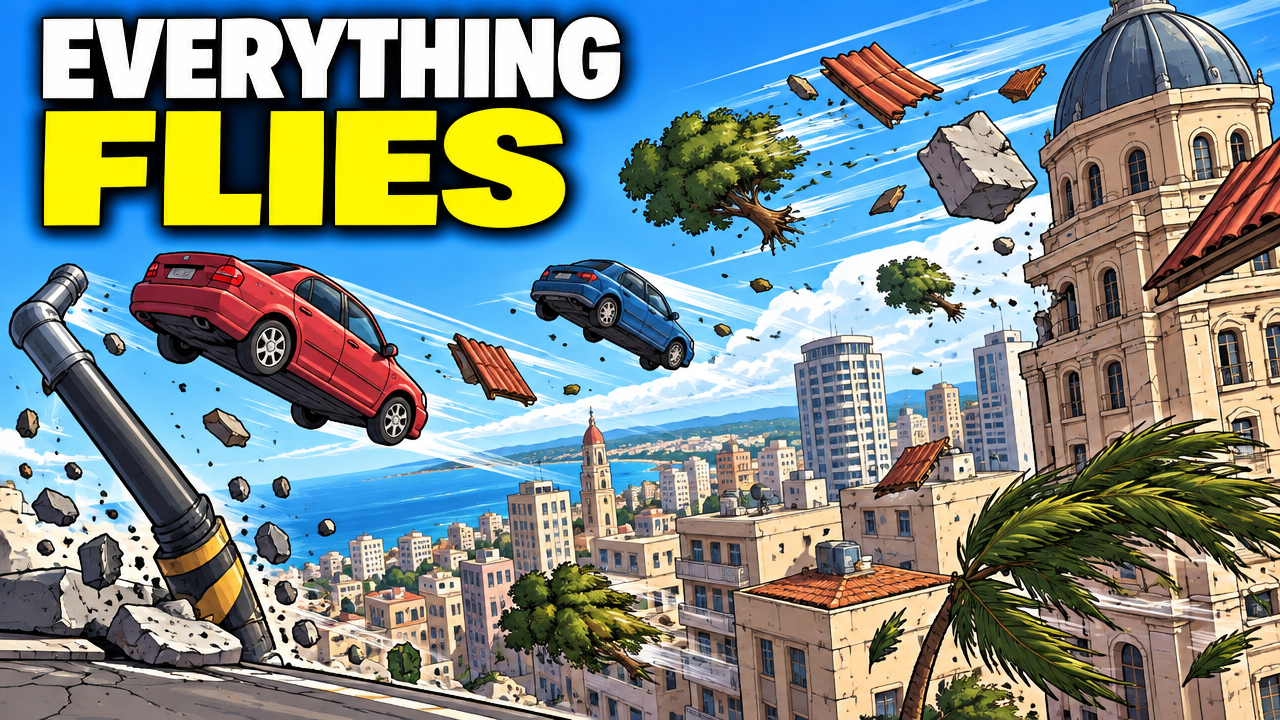
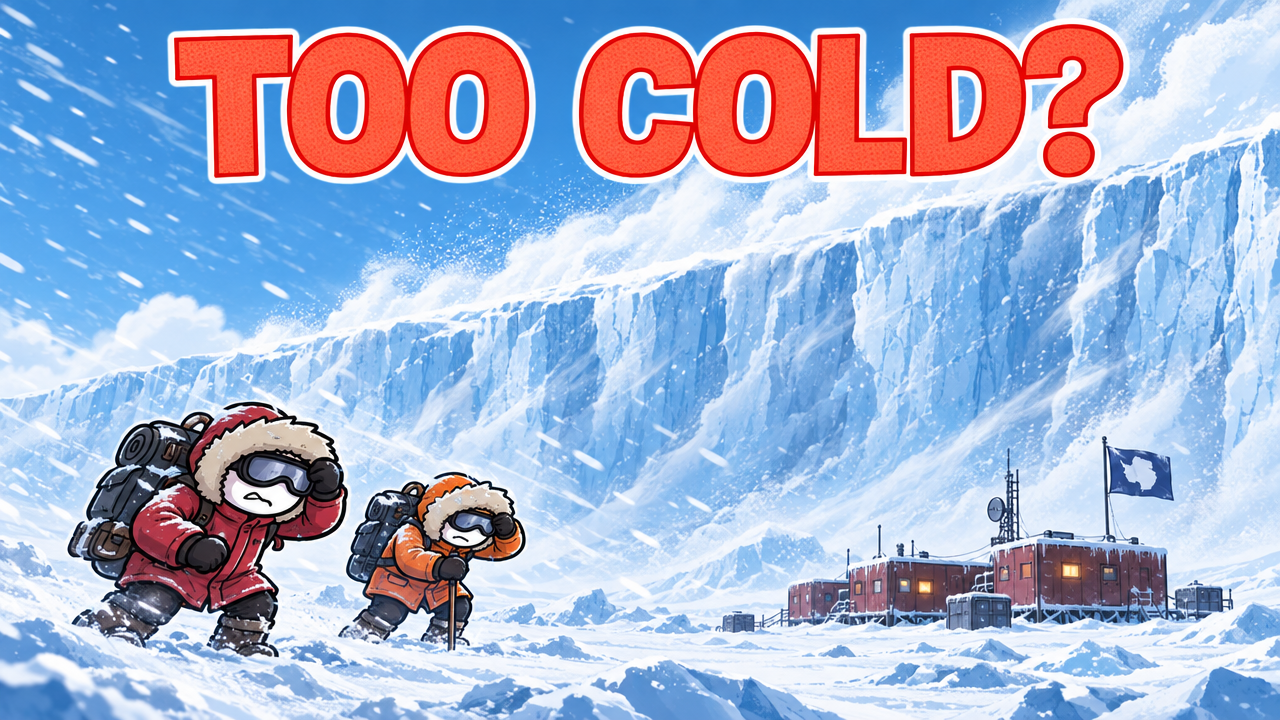
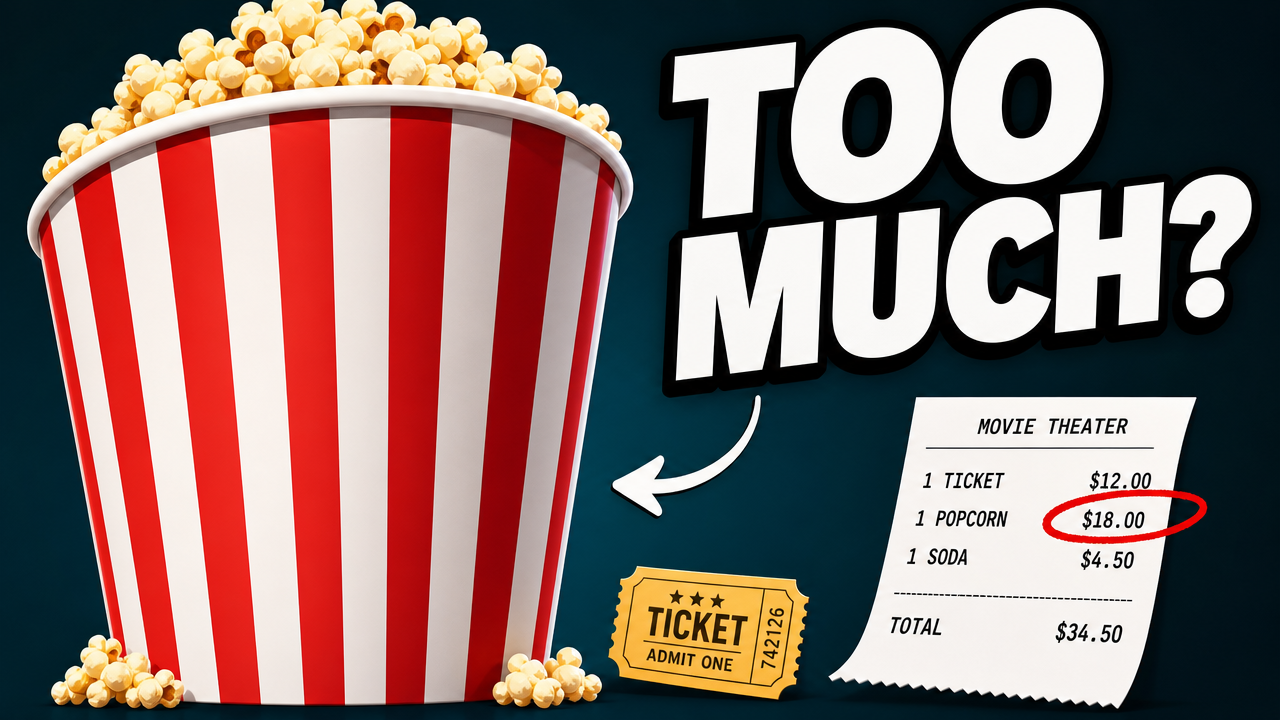
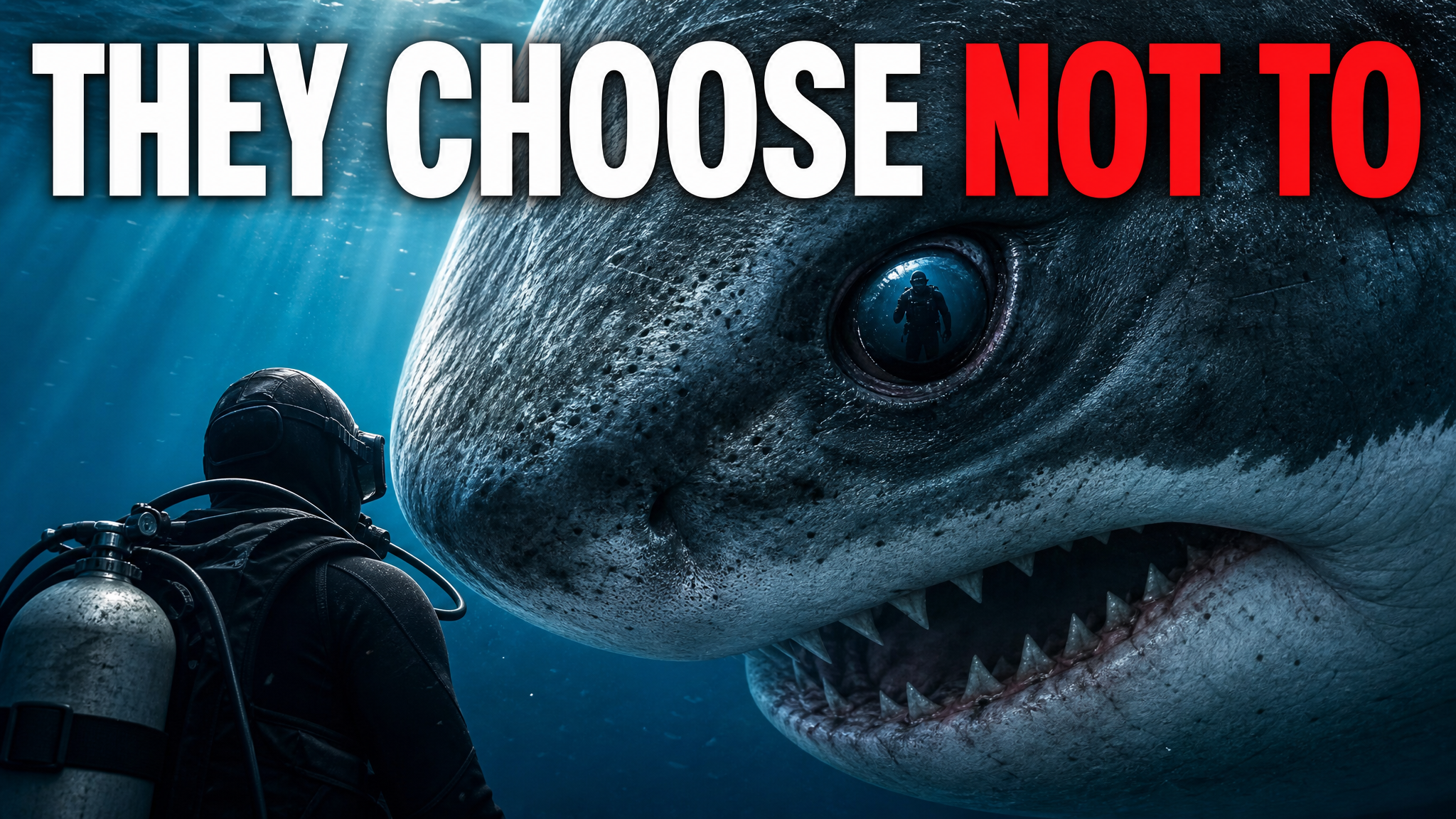
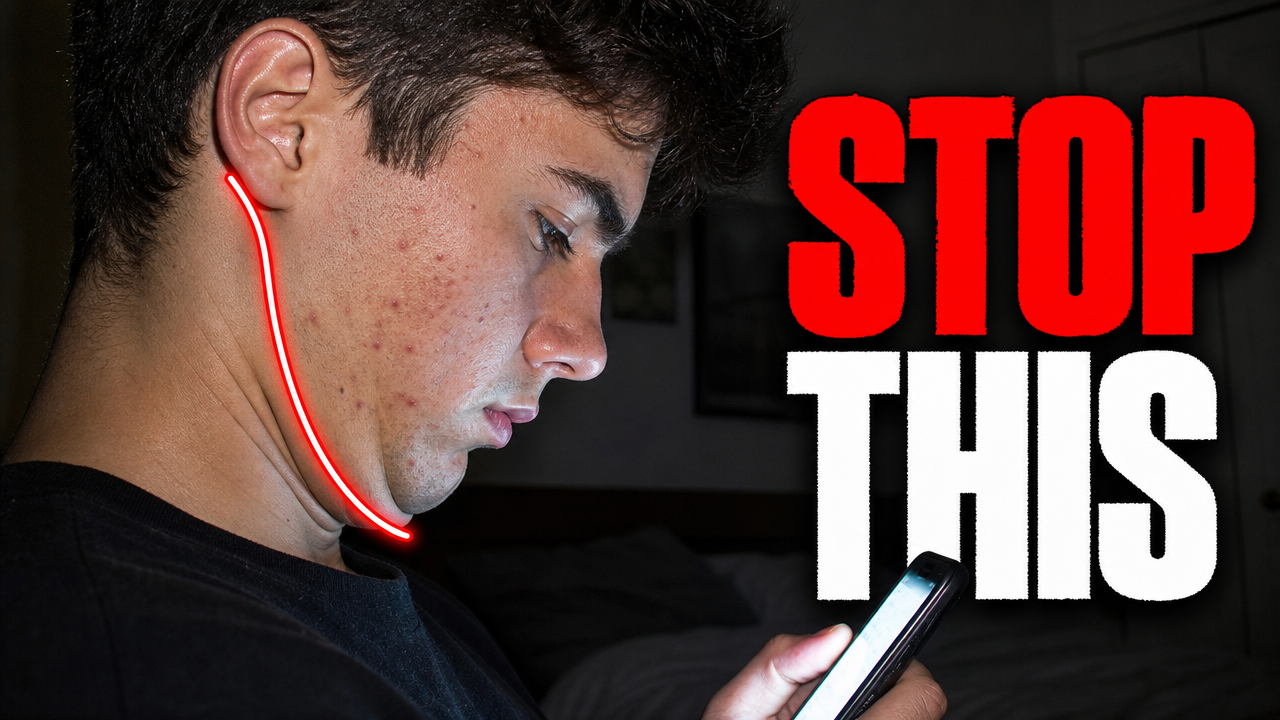
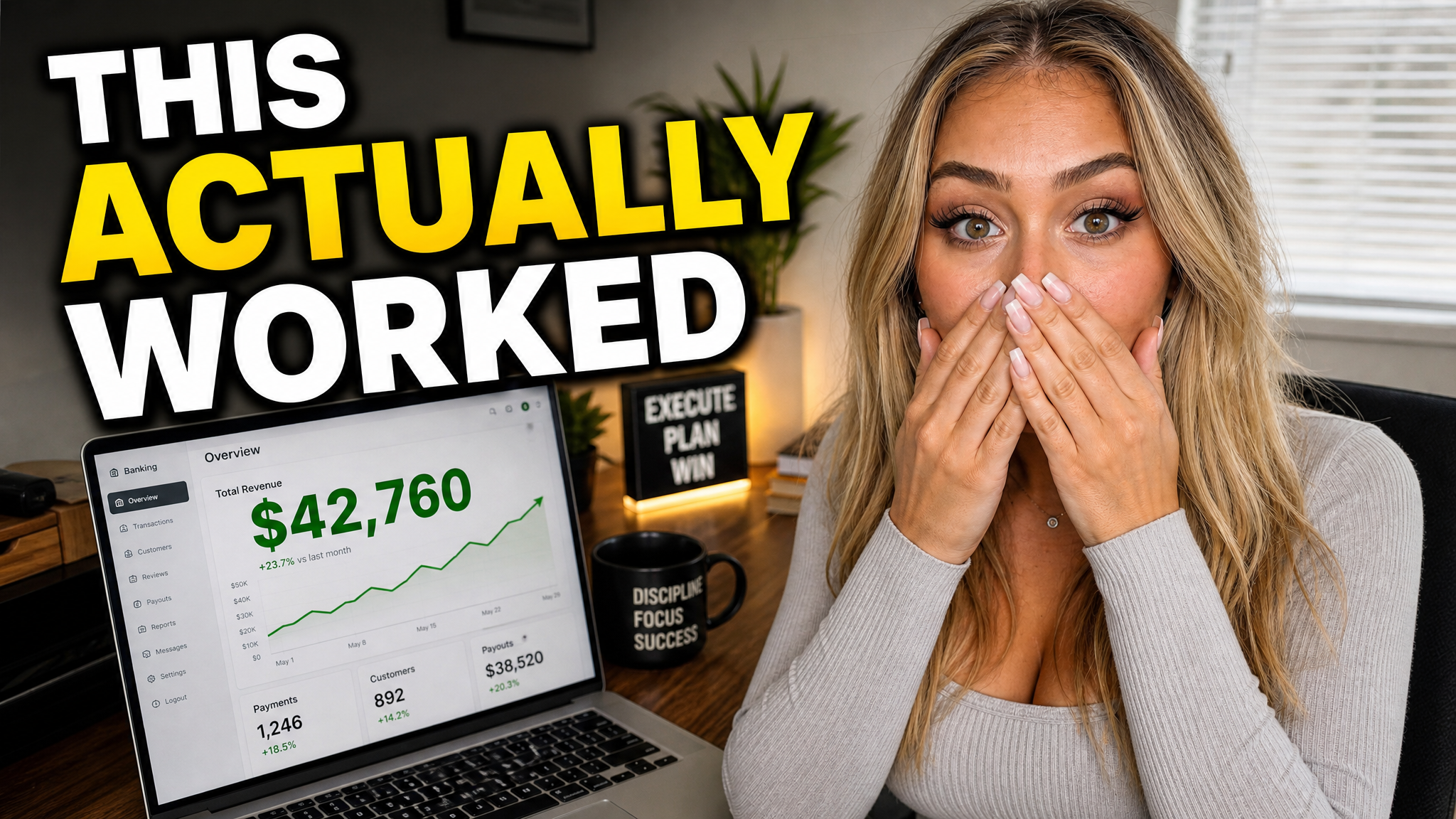
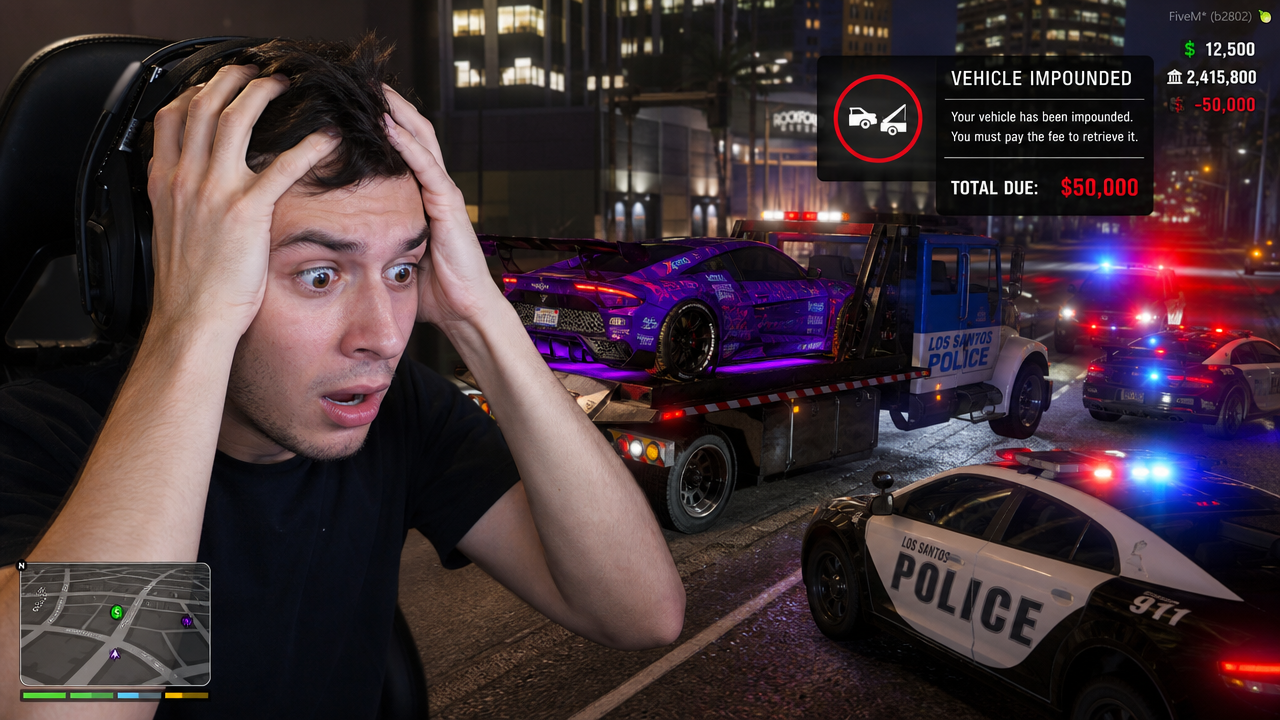
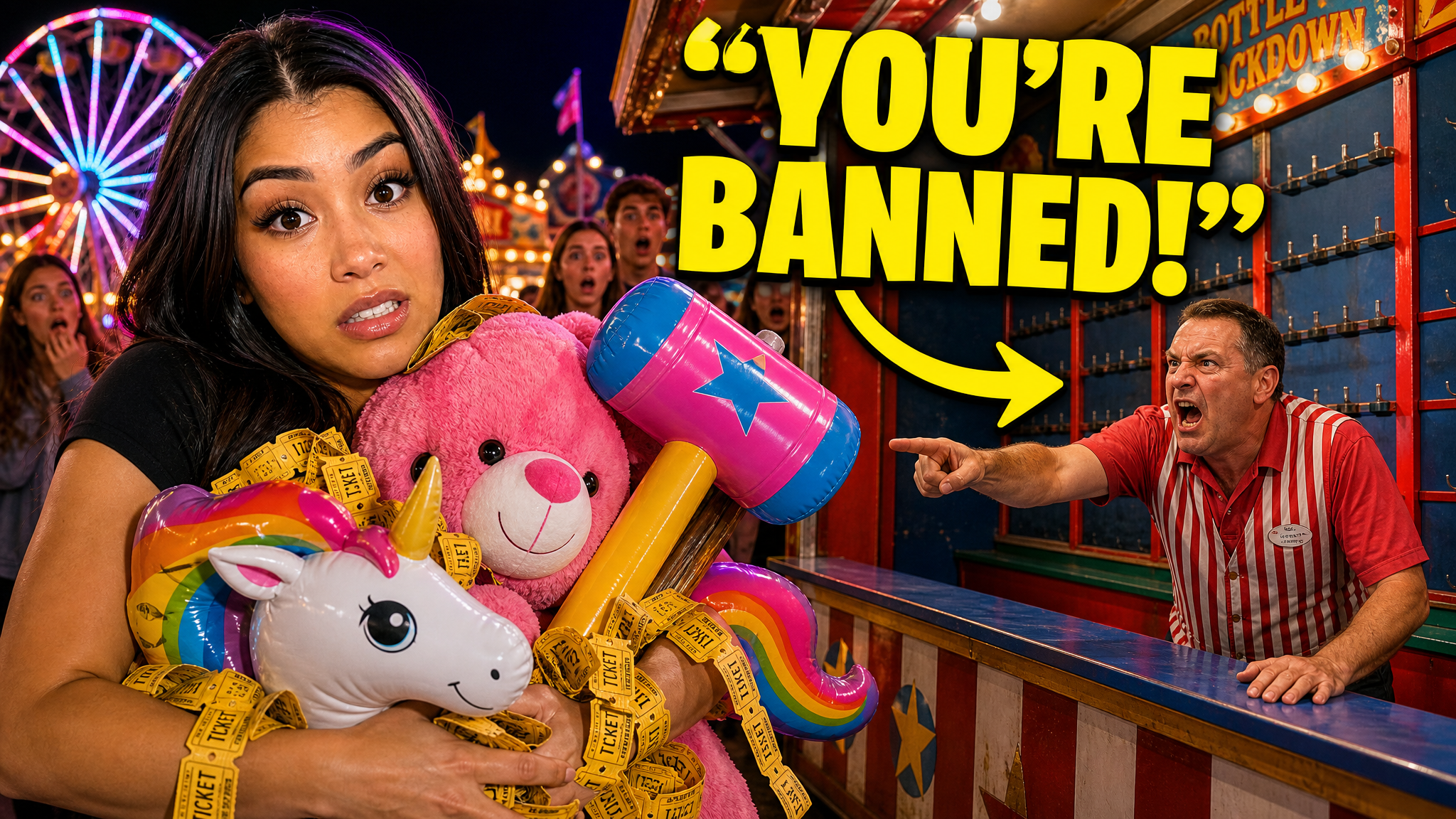
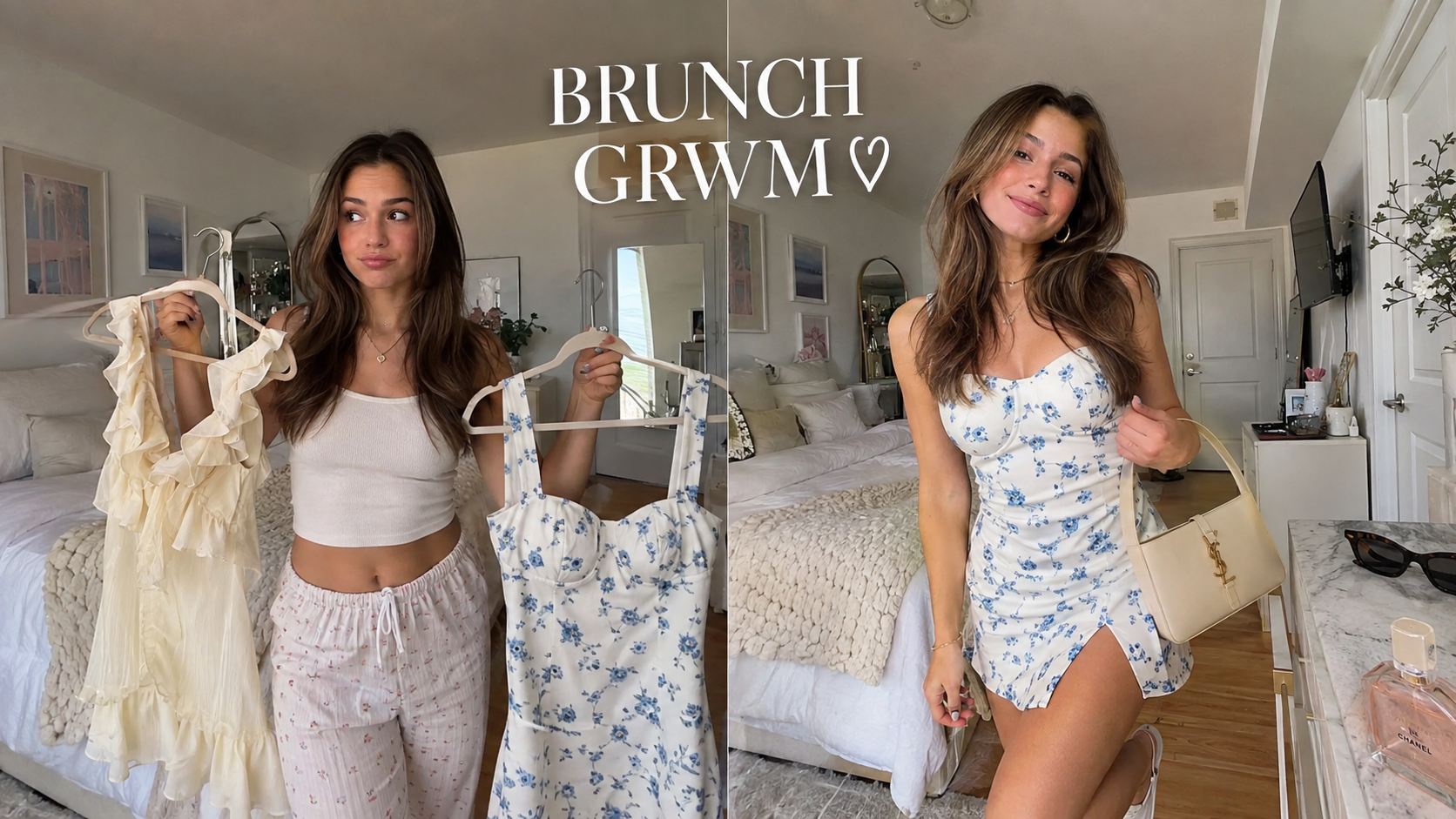
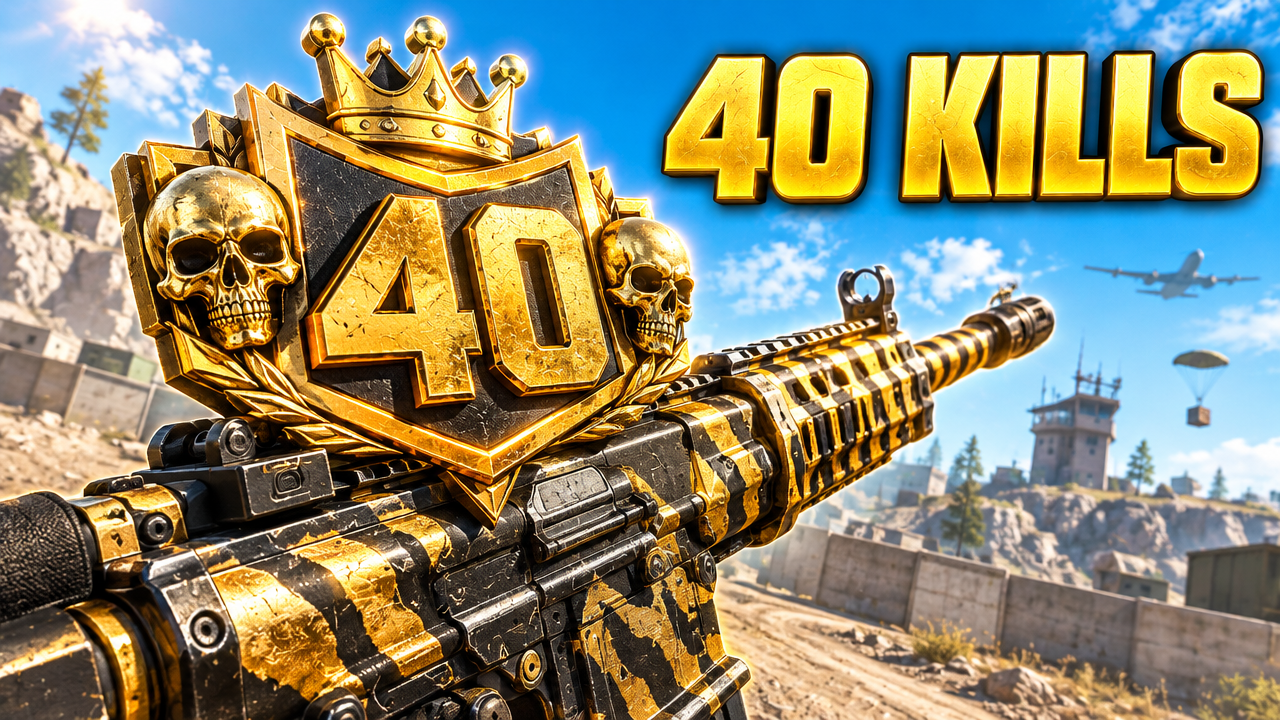
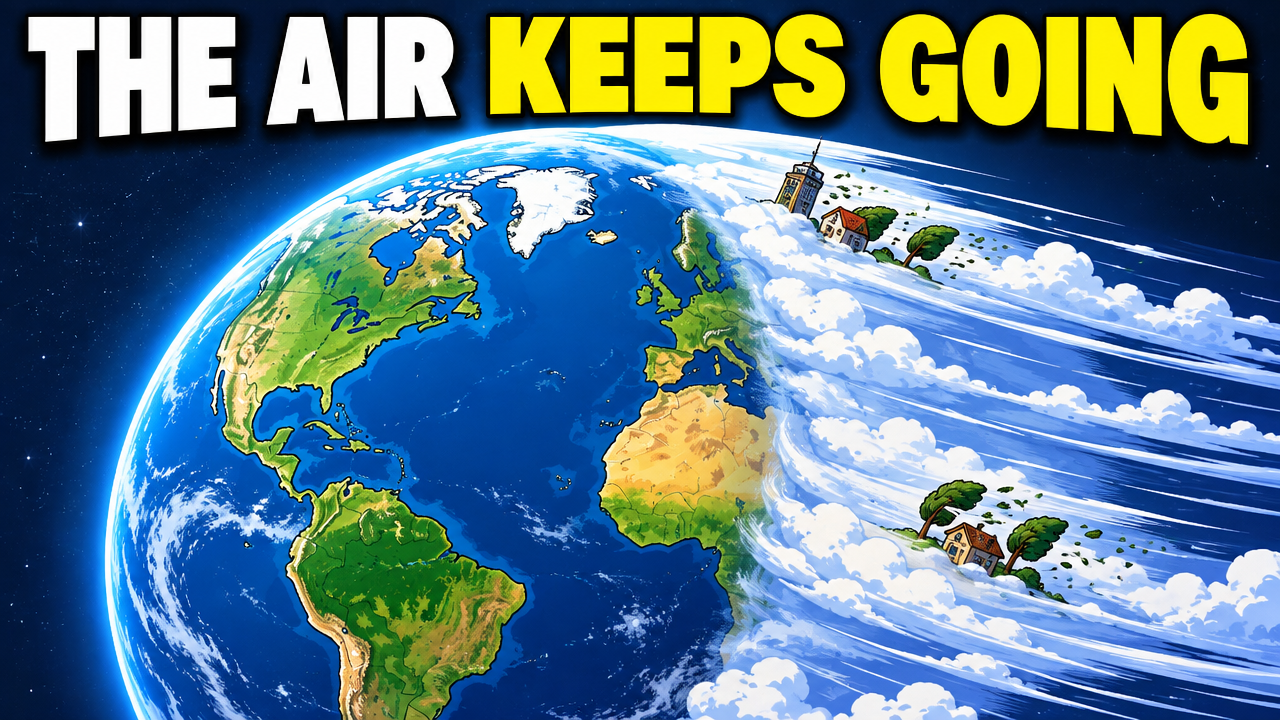
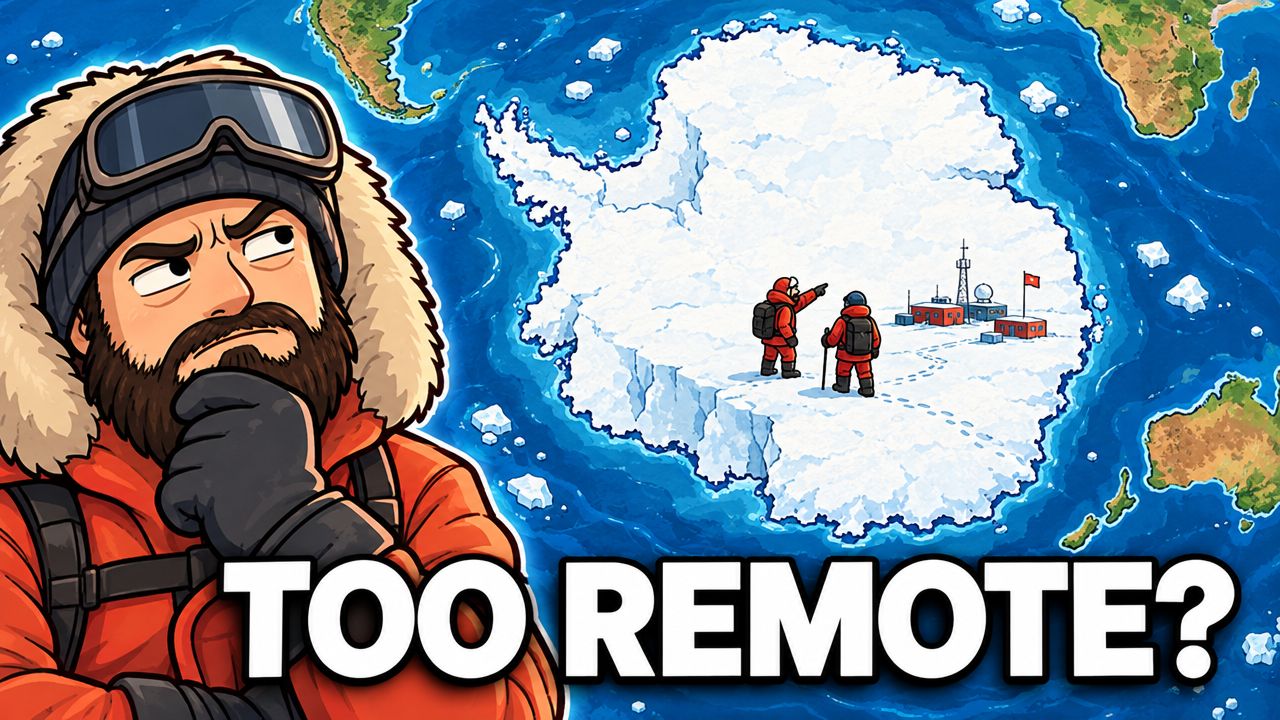
Short walkthroughs from our channel on making thumbnails people click.
Getting AI thumbnails past the fake look.
A one-off launch and a weekly show need different thumbnails. Show the topic first. Add timing, people, and the show mark only when they help. For your next livestream, compare thumbnail options with an AI thumbnail maker.
Place the host beside one clear subject or question. Keep the topic large enough to understand without reading the video title.
Show the guest clearly and explain why this conversation matters. Do not crowd the frame with every host and microphone.
Lead with the game, mode, challenge, or ranked goal. Keep the creator and game action separate enough to read on a phone.
Use the event name and one useful detail. Add a date or time only when the thumbnail will still be useful after scheduling changes.
Make the product or announcement the main subject. Do not invent features, pricing, logos, or launch details.
Keep the show mark, type, and layout stable. Change the guest, topic, or episode hook so each stream stays distinct.
More thumbnail ideas
See ideas for gaming, documentary, vlog, and standard YouTube videos.
Choose a monthly credit allowance for your publishing schedule.
For creators posting consistently every month.
Includes:
For creators publishing several times a week.
Everything in Starter, plus:
For high-volume creators and teams.
Everything in Starter, plus:
Describe the event, host, guest, game, product, or topic. Compare a few options, choose the best one, and edit it before you export.
It quickly explains what will happen and who or what is involved. Keep the main subject large, use short text, and add a date or time only when it helps.
Keep a recognizable layout, type style, or show mark, but change the guest, topic, or episode hook. This keeps the series consistent without making every stream look identical.
Yes. For an interview, lead with the guest and topic. For gaming, lead with the game, mode, challenge, or goal. Check it on a phone.
VisualKit is an AI YouTube thumbnail maker for creators who want to generate a new design, remix a reference, analyze an existing thumbnail, or revise an image with plain-language instructions. It produces upload-ready 1280×720 thumbnails in the browser, without requiring Photoshop.
Start with a video title or idea, compare generated options, then refine text, composition, color, or imagery. For practical guidance, read our thumbnail design guide or check the recommended YouTube thumbnail size.
| Task | What VisualKit Does | You Start With | You Can Change | Result |
|---|---|---|---|---|
| Create a thumbnail | Makes several YouTube thumbnail options from your video idea | A title, topic, or short description | The subject, text, background, and look | A 1280×720 YouTube thumbnail |
| Use your own photos | Builds the thumbnail around photos or images you upload | Your face, product, screenshot, or other image | Crop, placement, background, expression, and text | A thumbnail using your images |
| Use a reference | Uses another thumbnail to guide the look | A YouTube URL or reference image | Layout, light, color, contrast, and text | A new thumbnail for your video |
| Edit a thumbnail | Changes your chosen thumbnail from a plain-language request | A request like "make my face bigger" or "remove the text" | Text, face size, background, objects, colors, and crop | An updated version |
Create a thumbnail
Makes several YouTube thumbnail options from your video idea
A title, topic, or short descriptionA 1280×720 YouTube thumbnail
You Can Change: The subject, text, background, and look
Use your own photos
Builds the thumbnail around photos or images you upload
Your face, product, screenshot, or other imageA thumbnail using your images
You Can Change: Crop, placement, background, expression, and text
Use a reference
Uses another thumbnail to guide the look
A YouTube URL or reference imageA new thumbnail for your video
You Can Change: Layout, light, color, contrast, and text
Edit a thumbnail
Changes your chosen thumbnail from a plain-language request
A request like "make my face bigger" or "remove the text"An updated version
You Can Change: Text, face size, background, objects, colors, and crop