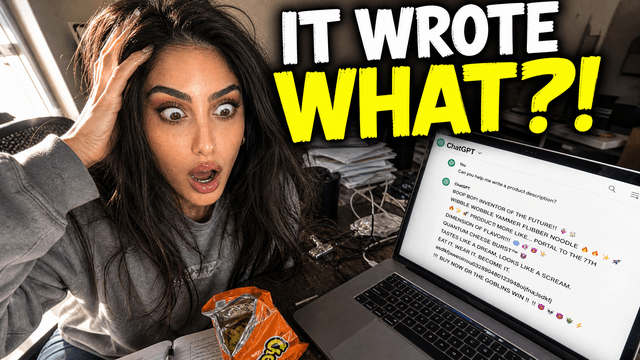
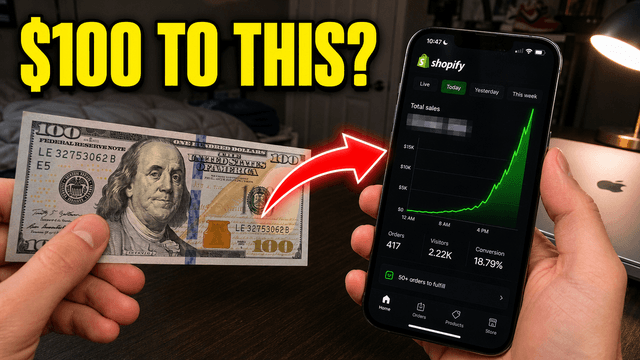
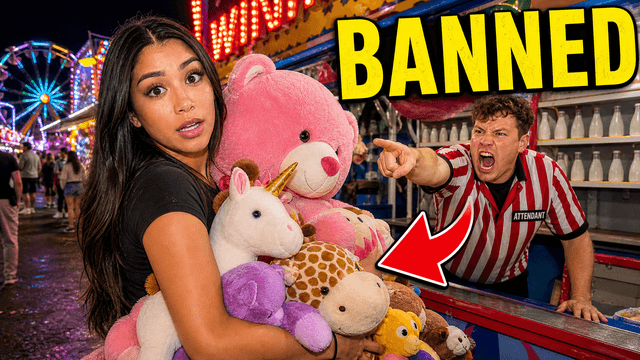
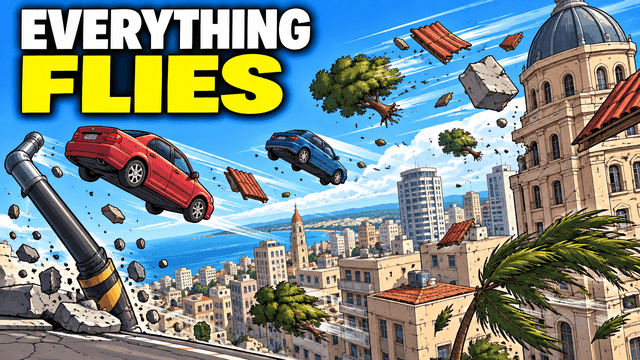
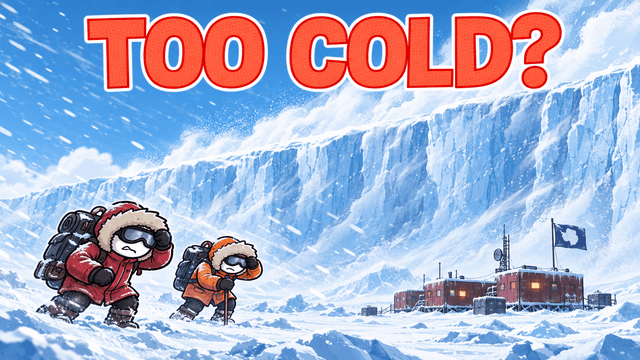
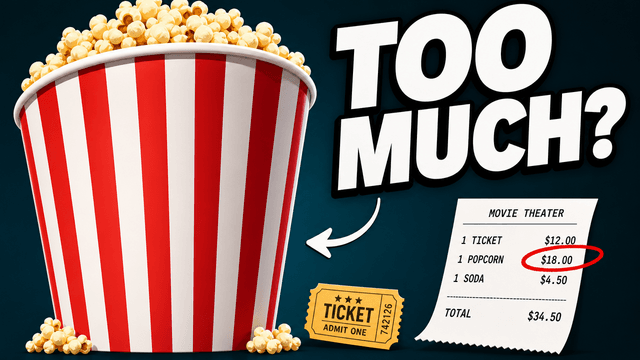
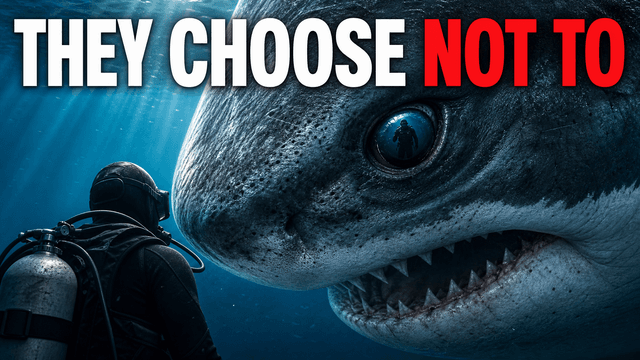
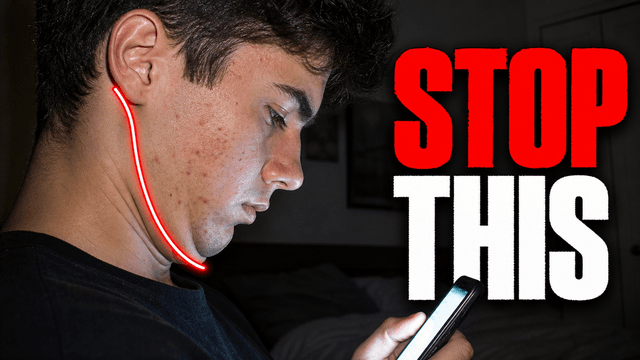
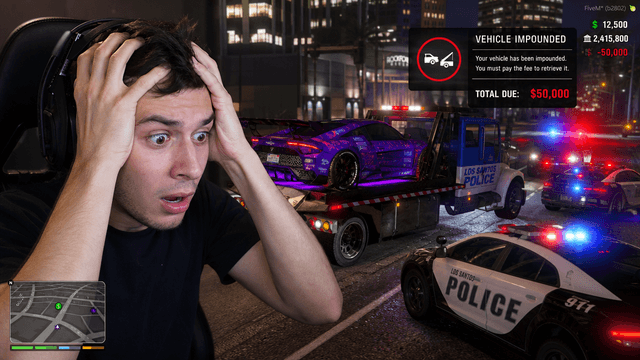
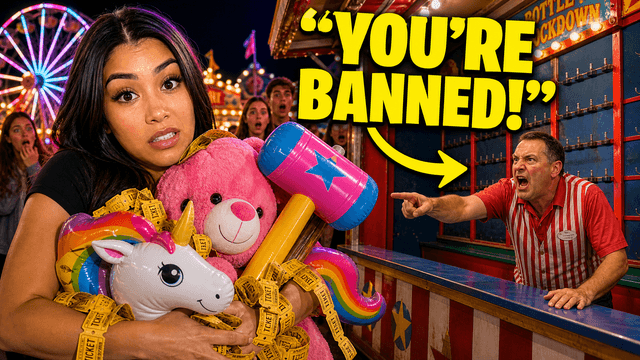
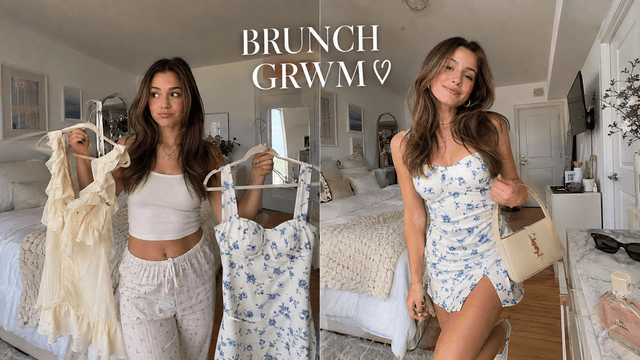
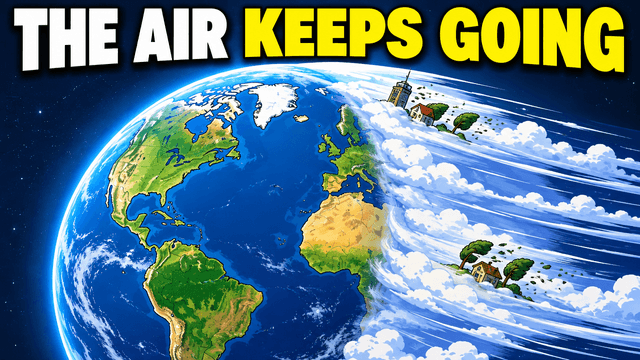
You design a thumbnail at 1280×720. Almost nobody sees it at 1280×720. The suggested sidebar — where most channels collect the bulk of their impressions — renders thumbnails at roughly 168 pixels wide. That's the real canvas. Every decision about thumbnail text — how many words, how big, what font, where it sits — should be made for the 168-pixel version, because that's the version doing the selling.
Most text mistakes come from forgetting this. The thumbnail looks great in the editor: crisp eight-word headline, elegant typeface, text tucked neatly into a corner. Then YouTube shrinks it by a factor of eight, slaps a duration badge over the corner, and the elegant headline becomes gray noise. Here's how to make text that survives the trip.
Three to five words — and they must say what the title can't
The word budget is three to five. Not because of some retention study, but because of arithmetic: the more words you add, the smaller every word gets, and at 168 pixels there is no headroom to give away. A five-word phrase set large is readable. A ten-word sentence set at half the size is decoration.
The harder discipline is which words. Your thumbnail never appears alone — the title sits right next to it, always. Text that repeats the title wastes the single most expensive real estate you have. If the title says "I Built a PC for $300," the thumbnail text shouldn't say "$300 PC Build" — it should say the thing the title withholds: "it runs Cyberpunk" or "huge mistake." Title and thumbnail are two halves of one pitch, and the packaging checklist covers that pairing in depth. The short version: if deleting the thumbnail text loses nothing the title already said, the text was dead weight.
A useful editing pass: write the phrase, then remove one word and check whether the meaning survived. Repeat until it breaks, then put the last word back. "You won't believe what happened next" compresses to "then this happened" compresses to nothing — which tells you the phrase was filler all along.
How big: the 10% rule of thumb
On the 1280×720 canvas, letters should be roughly 10% of the frame height or taller — about 80 pixels. That's not a law of optics; it's a rule of thumb that happens to keep letterforms legible after the shrink to sidebar size. Text at 40px looks perfectly fine in the editor and disappears completely in the feed.
But don't measure — test. Zoom your draft out until it's about the width of your thumb on screen, or view it at actual sidebar size, and ask one question: can I read every word in under a second without leaning in? That check beats any pixel value, because the pixel value can't account for your font choice, your contrast treatment, or how busy the image behind the text is.
Fonts: what survives the shrink and what dies
Shrinking an image is a brutality test for typography. Strokes thinner than a couple of pixels at final size simply vanish; tight letter spacing fuses into blobs. That sorts typefaces into survivors and casualties fast:
- Survives: heavy geometric and grotesque sans-serifs. The DM Sans / Inter class of typeface at bold, extra-bold, or black weight is the safe archetype — thick, even strokes and open counters that stay distinct at any size. No font is "the best font for thumbnails," so test the actual words, weight, spacing, language, and background before committing.
- Dies first: thin weights. Light and regular weights of even excellent fonts lose their strokes in the downscale. If the weight name doesn't say bold or heavier, it's a body-text weight, not a thumbnail weight.
- Dies second: script and decorative faces. Connected letterforms depend on detail that 168 pixels cannot carry. The vibe you're buying costs you the words themselves.
- Dies quietly: condensed faces with tight tracking. Condensed fonts tempt you because they fit more words — which is the wrong goal — and their narrow counters close up into vertical stripes at small size.
One more lever: ALL CAPS usually reads better at tiny sizes for short phrases. Caps produce a uniform block of consistent height, which holds together as a shape when individual letters start to blur. For three to five words it's almost always the right call; for longer text caps get harder to scan — which is another argument for not having longer text.
Contrast: pick one treatment, not three
Legible text at small size isn't about the font alone — it's about separation from the image behind it. There are four treatments that work:
- A solid color block behind the text. The bluntest and most reliable: a rectangle of flat color, text on top. Maximum contrast, zero ambiguity.
- A thick stroke or outline. White text with a heavy dark outline (or the reverse) stays readable over almost any background. The operative word is thick — a 1px stroke does nothing after the shrink.
- A drop shadow with real offset. Not a subtle 2px blur — a visible, offset shadow that creates a dark zone behind every letter.
- Text over a deliberately flat region. Compose the image so one area — sky, a wall, an out-of-focus zone — is quiet, and put the text there. The most elegant option, and the one that requires planning the shot.
The mistake is stacking them. Stroke plus shadow plus glow plus a gradient box reads as visual panic, and the effects start eating the letterforms they were supposed to protect. Choose one treatment per thumbnail and commit.
Placement: where YouTube's own UI won't eat your words
Two regions of every thumbnail belong to YouTube, not to you. The bottom-right corner carries the video duration badge on essentially every surface — text placed there is partially covered for every viewer. The very bottom edge gets the red watch-progress bar for anyone who has started the video before, which is exactly the returning audience you most want to re-hook.
That leaves the upper-left and center-left as the safest zones: nothing overlays them, and the small crops that different feeds apply to thumbnails treat the left side most predictably. Keep text inside the central safe area rather than flush against any edge — the exact margins and surface-by-surface specs are in the thumbnail size and safe-zone guide.
The cheat sheet
| Decision | Guideline | Common mistake |
|---|---|---|
| Word count | 3–5 words that add what the title can't | A full sentence that restates the title |
| Letter height | Roughly 10%+ of frame height (~80px on 1280×720) | Editor-legible 40px text that vanishes in the feed |
| Treatment | One: block, thick stroke, offset shadow, or flat region | Stroke + shadow + glow stacked on one phrase |
| Placement | Upper-left or center-left, inside the safe area | Bottom-right (duration badge) or bottom edge (progress bar) |
When no text wins
Text is a clarity tool, not a requirement. If the image already poses the question — a strong face reacting to something visible in frame, an object in a state that demands explanation, two things that shouldn't be together — words can only dilute it. Some of the most-clicked thumbnails on the platform are textless, because the image carries the tension and the title supplies the context. The principles behind that kind of image-first composition are covered in what makes a good thumbnail.
The honest test: cover the text on your draft. If the thumbnail still makes you want to know what happens, the text was optional — keep it only if it sharpens the promise. If covering the text makes the image meaningless, the text is doing real work, so give it the size and contrast that work deserves.
And if typesetting is the part you fight with — weights, strokes, placement, twelve exports to get one readable frame — that's a solved problem. An AI thumbnail maker applies heavy-weight type, a single clean treatment, and safe-zone placement by default; you describe the concept and check the result at real size. The thinking in this article still decides what the words are. The tooling just stops the words from dying at 168 pixels.